
Bus Simulator Ultimate Login Problem: How to Fix Login Errors
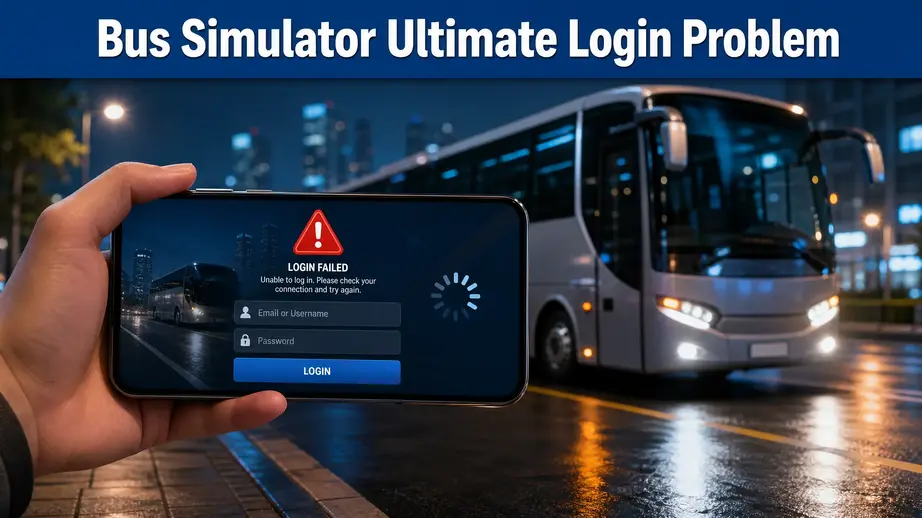
A Bus Simulator Ultimate login problem can stop the game before you reach your saved progress. You may see a failed login, loading screen, or account error. Android players often use Google Play Games with their Google account. iPhone and iPad players may rely on Game Center and their Apple Account. Some players also use Facebook, a Guest account, or a Zuuks account.
The right fix depends on the error and your login method. First, check which account the game uses. Google also warns that some games can lose data after an uninstall. So, avoid clearing app data or reinstalling right away. Confirm your account and saved progress first. This approach can help protect your Bus Simulator Ultimate account while you fix the login issue.
Why Is Bus Simulator Ultimate Not Logging In?
A Bus Simulator Ultimate login problem can have several causes. The issue may come from your account, connection, app, or game servers. Finding the cause first helps you choose the right fix. It also reduces the risk of losing saved progress.
Google Play Games Is Not Connected
Android players often use Google Play Games to sign in. Bus Simulator Ultimate may fail when the wrong Google account stays active. You may see this message:
“You must login to your Play Games account to continue”
Check Google Play Games before changing the game’s data. Make sure it uses the Google account linked to your game progress. Google Play Services also supports Google account authentication. Problems with this service can affect the Bus Simulator Ultimate login process. If other games also have sign-in problems, check your Google account first. If only Bus Simulator Ultimate fails, the issue may relate to the game.
Internet or Connection Problems
A weak connection can interrupt the login process. The game may stay stuck while contacting its online services. Wi-Fi can fail even when your phone shows a connection. Mobile data can also become unstable in some locations. Try switching between Wi-Fi and mobile data. You can also turn Airplane Mode on for a few seconds. Then turn it off and reconnect. If you use a VPN, disable it before trying again. A different network can quickly show whether your connection causes the Bus Simulator Ultimate login error.
Outdated Game or Google Play Services
An outdated game can cause compatibility problems with newer Android services. Check for updates for:
Install available updates before trying more advanced fixes. An update can also fix bugs that affect authentication, account syncing, or connection services. If the problem started after a recent game update, wait for the app to finish updating completely. Then restart the game.
Temporary Server Problems
Sometimes your phone has no problem at all. The issue can come from the game’s online services. Bus Simulator Ultimate connects to Zuuks services during account-related actions. A temporary server issue can interrupt authentication or cloud loading. You may suspect a server problem when:
Server problems usually affect many players at the same time. Changing app settings will not fix a server-side outage. Wait for a while and try the login again. Avoid repeated reinstallations when the server appears unavailable.
Corrupted Cache or App Data
Bus Simulator Ultimate stores temporary files on your device. A damaged cache can sometimes interfere with normal app behavior. Clearing the cache can remove these temporary files. This step usually carries less risk than clearing the app’s stored data. Clear Cache removes temporary files from the app. Clear Data removes the app’s stored information from the device. These options do not have the same effect. Do not clear app data before checking your account and saved progress. Start with the cache when troubleshooting a Bus Simulator Ultimate login problem. Move to stronger steps only when safer fixes fail.
Account Sync Problems
A successful login does not always mean your progress will load correctly. The game may connect to the wrong account. Your cloud save may also fail to sync with the current device. Common signs include:
First, confirm that you use the same account as before. Check your Google account and login method carefully. Do not uninstall the game immediately after finding missing progress. Confirm your account and cloud save status first. This step matters most for players who have invested time in career mode, multiplayer progress, or their bus fleet.
How to Fix Bus Simulator Ultimate Login Problem
Start with simple checks before changing account settings or app data. These steps can fix many connection-related login errors.
1. Check Your Internet Connection
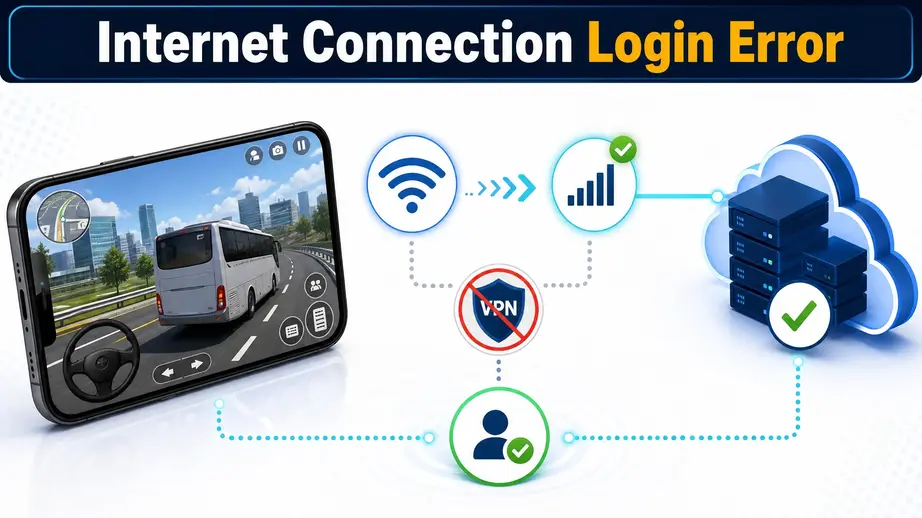
Bus Simulator Ultimate needs a stable connection for online login and account services. A weak connection can interrupt authentication. Follow these steps:
If the game works on one network, your original connection may cause the problem. Also check whether you use a VPN. A VPN can change your connection route and cause login issues. Disable the VPN temporarily and open the game again. If the Bus Simulator Ultimate login problem continues on different networks, move to the next troubleshooting step.
2. Check Google Play Games Login
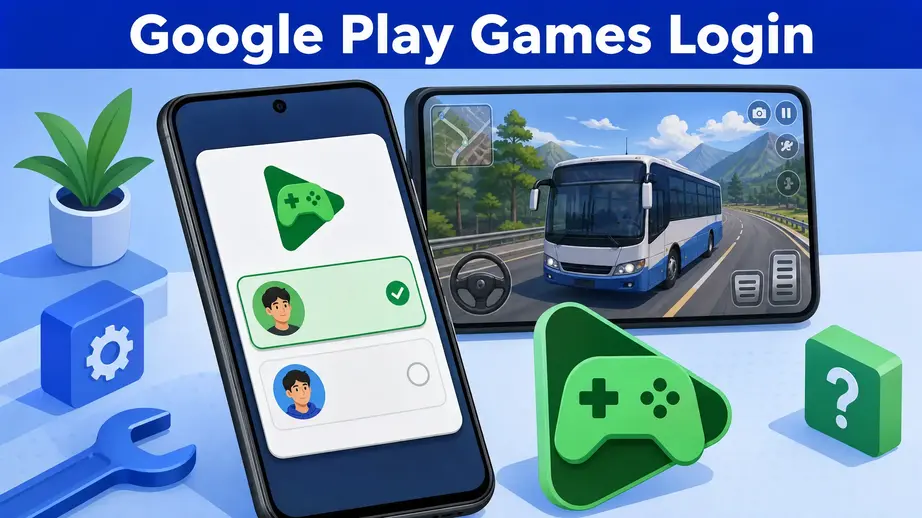
Android players should check Google Play Games before changing Bus Simulator Ultimate data. A wrong account can stop the login process. Follow these steps:
The Bus Simulator Ultimate Play Games login depends on the correct Google account. Using another account can make your saved progress appear missing. If you see “You must login to your Play Games account to continue,” check Google Play Games first. Also confirm that Google Play Services works correctly on your phone. It supports several Google account features used by Android apps. If another game also fails to sign in, your Google account may need attention. If other games work normally, continue with the next Bus Simulator Ultimate fix. For a Bus Simulator Ultimate Google account login issue, always confirm the account before clearing app data. This can help prevent confusion about missing progress.
3. Update Google Play Games and Google Play Services
Outdated Android services can cause login and authentication problems. Bus Simulator Ultimate relies on these services for several account-related functions. Check these components before trying advanced fixes:
An outdated Google Play Services version can interfere with account authentication. The same can happen when Google Play Games runs an older version. The Google Play Store also handles app updates and related services. Keeping it updated can reduce compatibility problems. Android system updates can fix bugs that affect app permissions, connectivity, and account services. If your Bus Simulator Ultimate login problem started after an Android or game update, check all available updates first. Then test the login before clearing cache or app data.
4. Force Stop Bus Simulator Ultimate
A temporary app process can sometimes interfere with login. Force stopping the game closes its active processes. Follow these steps on Android:
The exact menu names can differ between Samsung, Xiaomi, Redmi, Poco, Oppo, Huawei, and Google Pixel phones. A Bus Simulator Ultimate force stop does not uninstall the game. It simply closes the running app and lets you start it again. This step can help when the game gets stuck during authentication or loading. It also makes sense before trying more advanced fixes.
5. Clear the Game Cache
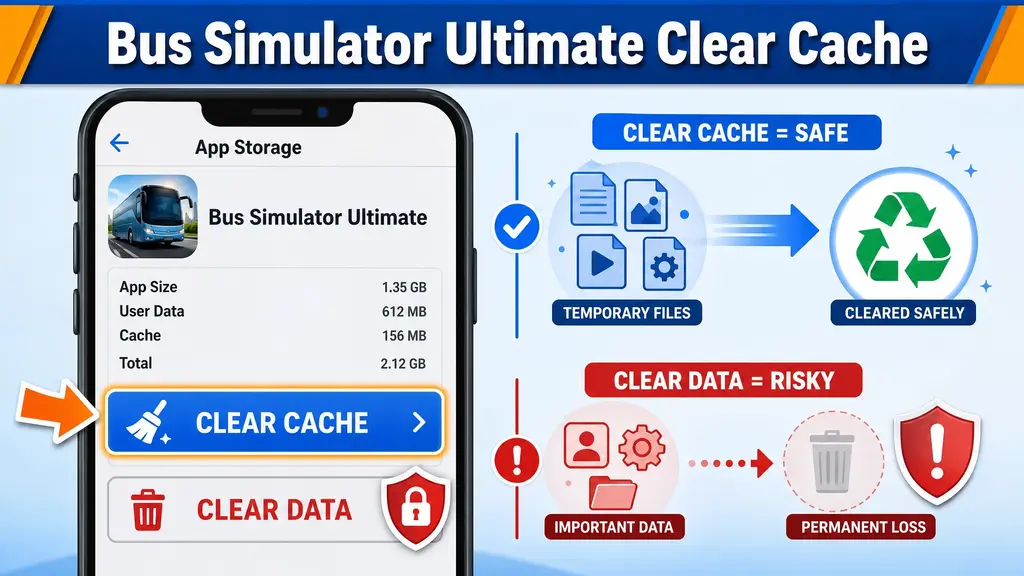
A damaged cache can sometimes affect the game’s login process. Clearing it removes temporary files without uninstalling Bus Simulator Ultimate. Follow these steps on Android:
The menu names can differ between Samsung, Xiaomi, Redmi, Poco, Oppo, Huawei, and Google Pixel devices. There is an important difference between clearing cache and clearing data. Clear Cache removes temporary files created by the app. This makes it the safer first choice when fixing a login problem. Clear Data or Clear Storage removes the app’s stored information from your device. You should treat this option with more care. Do not tap Clear Data just because the cache fix fails. First confirm your Google account, Zuuks account, and cloud save status. Using bus simulator ultimate clear cache as an early troubleshooting step can help without taking the same risks as deleting local app data.
6. Check Account Permissions and Sync
Account settings can affect how Bus Simulator Ultimate connects with your saved game data. A sync issue can also make your progress appear missing. Start by checking your Google account on Android.
Your phone may use different menu names depending on the Android version and device brand. Also check the game’s required permissions. Denied permissions can sometimes affect normal app functions. Do not switch between several Google accounts during troubleshooting. The wrong account can make your saved progress look like it disappeared. If you recently changed phones, check the original Google account first. Your Bus Simulator Ultimate account may connect to the account you used on your previous device.
Account sync can also affect cloud saves and progress loading. Give the game time to reconnect after restoring your account settings. If your progress still does not appear, avoid clearing app data or reinstalling the game. Confirm your account and cloud save status before taking those steps.
7. Disable VPN and Try Again
A VPN can change how your phone connects to online services. This change can sometimes interfere with Bus Simulator Ultimate authentication. A VPN may affect:
If you use a VPN, turn it off temporarily. Then follow these steps:
You can also switch between Wi-Fi and mobile data after disabling the VPN. This helps test whether the network causes the Bus Simulator Ultimate login problem. If the login works without the VPN, the VPN connection may have caused the issue. You can test the VPN again later if you need it for another purpose. If the problem continues with the VPN disabled, move to the next troubleshooting step.
8. Restart Your Phone
A phone restart can clear temporary system issues that affect apps and network services. It also gives Google Play Services a fresh start. Follow these steps:
The steps work across common Android devices, including Samsung, Xiaomi, Redmi, Poco, Oppo, and Google Pixel. A restart can help when the game gets stuck during authentication or fails to connect. It also works well after updating Google Play Games or Google Play Services. If your Bus Simulator Ultimate login problem remains after the restart, continue with the next troubleshooting step instead of clearing app data immediately. Bus Simulator Ultimate Company Logo Ideas
9. Check Whether Bus Simulator Ultimate Servers Are Working
A Bus Simulator Ultimate login problem does not always come from your phone. The issue can also affect your account or the game’s servers. First, identify which side causes the failure. Device-side problem: Your phone, app, network, or Android services cause the login failure. Account problem: Your login details, Google account, or linked game account causes the issue. Server-side problem: Zuuks services cannot process authentication or connect your game account. Look for these signs of a possible server issue:
A server problem can affect players across different devices and networks. Changing your phone settings will not fix that type of issue. Try the game again after some time. Avoid uninstalling Bus Simulator Ultimate when the problem looks server-related. If the game works for other players but fails only on your device, check your network, app version, account, and Google Play Services next. This simple check helps you avoid unnecessary changes when the real problem comes from the game’s online services.
How to Login to Bus Simulator Ultimate
Bus Simulator Ultimate offers several ways to access your game account. Your available options can depend on your device and game version. Using the correct login method helps the game find your saved progress. It also makes account recovery easier if you change devices.
Google Play Games Login on Android
Android players can use their Google account through Google Play Games. Follow these basic steps:
The Bus Simulator Ultimate Google account login depends on the correct Google account. Choosing another account can make your old progress appear missing. If the game shows “You must login to your Play Games account to continue,” check Google Play Games before changing the game’s data.
Facebook Login
Some players may use Facebook to connect with their game account. If Facebook login appears in your version, select the Facebook option and complete the sign-in process. Check these points if authentication fails:
Do not switch between different Facebook accounts during recovery. The wrong account may not contain your original game progress.
Guest Account
A Guest account lets you play without linking your progress to a full account. This option can work for players who want to start quickly. However, guest progress can depend more heavily on the device and local game data. That creates a risk when changing phones or deleting the app. Before switching devices, consider linking your game to a supported account. This gives you a better way to recover your progress later. If you already use Guest mode, avoid clearing app data until you understand where your progress exists.
Zuuks ID / Zuuks Account
A Zuuks account can provide another way to access supported game services. The exact options can vary by game version. If your version offers Zuuks ID or a similar account option, use the same account details linked to your original progress. For account access problems:
Keep your account details safe and avoid creating a new account while trying to recover an old one. The correct login method matters because different accounts may hold different game progress. If your old buses, company progress, or career data do not appear, check the account before making any major changes.
Fix “You Must Login to Your Play Games Account to Continue”
The message “You must login to your Play Games account to continue” usually points to an Android sign-in issue. The game may not detect your Google Play Games session correctly. Follow these checks in order.
Check Google Play Games
Open Google Play Games on your Android phone. Make sure the app loads your profile correctly. Check whether your games appear under the account. If Google Play Games asks you to sign in, complete the login first. Then open Bus Simulator Ultimate again.
Select the Correct Google Account
Your phone may contain several Google accounts. Bus Simulator Ultimate needs the account connected to your game progress. Open Google Play Games and check the active account. If you recently changed accounts, switch back to the account you used before. The wrong Google account can cause the game to create a new profile. Your original progress may then appear missing.
Update Google Play Services
Open the Google Play Store and check for available updates. Update Google Play Services, Google Play Games, and Bus Simulator Ultimate when updates appear. Outdated services can interfere with authentication between the game and your Google account. Restart your phone after completing the updates.
Restart Google Play Games
Close Google Play Games completely. Then open it again and wait for your profile to load. Check that your Google account appears correctly. Now open Bus Simulator Ultimate and try the Bus Simulator Ultimate Play Games login again.
Restart Bus Simulator Ultimate
Close the game after checking Google Play Games. Open it again from your app list. Wait for the login screen to load fully. Then select the correct login option. Do not repeatedly tap the login button if the game takes time to authenticate.
Check Account Sync
Open your Android account settings and check Google account sync. Make sure automatic sync works correctly. Then open Google Play Games and confirm the same account remains active. Account sync problems can prevent the game from loading your existing profile correctly.
Try Another Network
Your connection can also block authentication. Switch from Wi-Fi to mobile data and try again. If mobile data fails, switch back to Wi-Fi. You can also turn Airplane Mode on briefly. Turn it off before trying the login again. If you use a VPN, disable it during this test.
What If the Message Still Appears?
If the message continues after these checks, avoid clearing Bus Simulator Ultimate data immediately. First confirm that Google Play Games uses the correct account. Then check whether other games can sign in normally. If other games also fail, focus on your Google account and Play Games setup. If only Bus Simulator Ultimate shows the message, the problem may involve the game or its online services. At that point, keep your account details and error message ready before contacting Zuuks support. This gives you a safer path than repeatedly reinstalling the game.
Bus Simulator Ultimate Login Error Codes and Messages
Different messages can point to different causes. Use the error below to choose your next step.
“Login Failed”
A Login Failed message can appear when the game cannot complete your account sign-in. Possible causes include:
First, check your Google Play Games account. Then test your internet connection and update the game. Restart Bus Simulator Ultimate after making these checks.
“Authentication Failed”
An Authentication Failed message means the game could not verify your account session. Check that you use the correct Google account. Then open Google Play Games and confirm that your account works. Update Google Play Services if needed. You should also disable your VPN during testing. Then restart the game and try again. If the error affects only Bus Simulator Ultimate, wait and try again later. A temporary server issue can also affect authentication.
“Account Not Recognized”
An Account Not Recognized message can appear when the game cannot match your login with the expected account. First, check the account you selected. Make sure you use the same Google, Facebook, Guest, or Zuuks account as before. This matters when you have several accounts on one phone. Do not create a new account just because your progress does not appear. Check your original login method first. If you recently changed devices, confirm the account that held your previous progress.
“Connection Error”
A Connection Error usually points toward communication between the game and its online services. Try these steps:
If other apps work normally but the game still shows this error, the problem may involve the game server.
“Failed to Cloud”
A Failed to Cloud message can indicate a cloud save or synchronization problem. The game may struggle to load or save account data. First, confirm that you use the correct account. Then check your internet connection and allow the game time to sync. Avoid clearing app data when you see this message. You could remove local game information before confirming your cloud save. If your progress appears missing, close the game and check the original account again.
403 Login Error
A 403 login error can indicate an access or authentication problem. It does not always mean that your internet connection failed. Check your Google Play Games account first. Then confirm your account details and update Google Play Services. You can also switch networks and disable your VPN. If the same 403 error continues across different networks, the problem may involve account access or the game’s online service. Avoid repeated reinstallations while investigating the error.
Login Rate Limit Error
A login rate limit error can appear after repeated login attempts within a short period. Repeated attempts can make troubleshooting harder. You may keep triggering the same restriction before the service accepts another request. Stop trying for a while if you see a rate limit message.
Then check your account details and internet connection. After waiting, try logging in once. Do not repeatedly switch between accounts or login methods during this process. If the error returns after a reasonable wait, record the exact message. You can then provide those details when contacting Zuuks support. For every Bus Simulator Ultimate login error, start with the safest checks first. Confirm your account and connection before changing stored app data.
Bus Simulator Ultimate Account Recovery
Losing access to your game account can feel stressful. Start by identifying the login method you used before. The Bus Simulator Ultimate account recovery process depends on that account. You may need your Google account, Facebook account, Guest profile, or Zuuks account details.
Forgotten Login Details
First, think about how you previously signed in. Check whether you used:
Avoid creating a new account before checking these options. A new account may not contain your old progress. If you use several Google accounts, check each one carefully. Your saved game may connect to only one of them.
Password Reset
If you cannot remember your account password, use the available password reset option for that account. Enter the email address linked to your account. Check your inbox for the reset message. Also check your spam or junk folder. Use the latest reset email if you receive several messages. Older reset links may no longer work. Do not share your password or verification code with anyone.
Email Verification
Some account systems may require email verification before completing account access. Check your email after requesting verification. If you cannot find the message, search your inbox for the account or service name. Also check your spam and junk folders. Make sure you entered the correct email address. A small spelling mistake can send the message to another address.
Recovery Email
A recovery email can help when you lose access to your main login details. Use the recovery option provided by the account service. Follow each verification step carefully. If you still cannot access the account, avoid guessing passwords repeatedly. Keep your original email information available when contacting support.
Account Not Recognized
An Account Not Recognized error does not always mean that your account disappeared. The game may connect to a different account. Check the Google account or other login method you used previously. This step matters most after changing phones. Do not clear app data or uninstall the game until you confirm the correct account. If your old progress appears missing, check the original login method first.
Switching Devices
Moving Bus Simulator Ultimate to another phone can cause account confusion. Before switching devices, confirm which account holds your progress. On the new device, sign in with the same account. Do not create a new profile if your old progress does not appear immediately. Check your internet connection and allow the game time to sync. If the progress still does not appear, contact official support before making major changes.
Contacting Official Support
Contact Zuuks support when normal recovery steps fail. Explain the exact login problem and provide accurate account information. Avoid sending multiple requests with different account details. Keep your information consistent.
What to Prepare Before Contacting Support
Prepare these details before sending your request:
Screenshots can help show exactly where the login process stops. Purchase receipts can also help identify transactions linked to your account. Give support a clear timeline if the problem started after an update or device change. Most importantly, do not send your password or verification codes in a support request. Providing clear information can make it easier to identify the account and understand your Bus Simulator Ultimate account recovery problem.
Bus Simulator Ultimate Cloud Save and Progress Problems
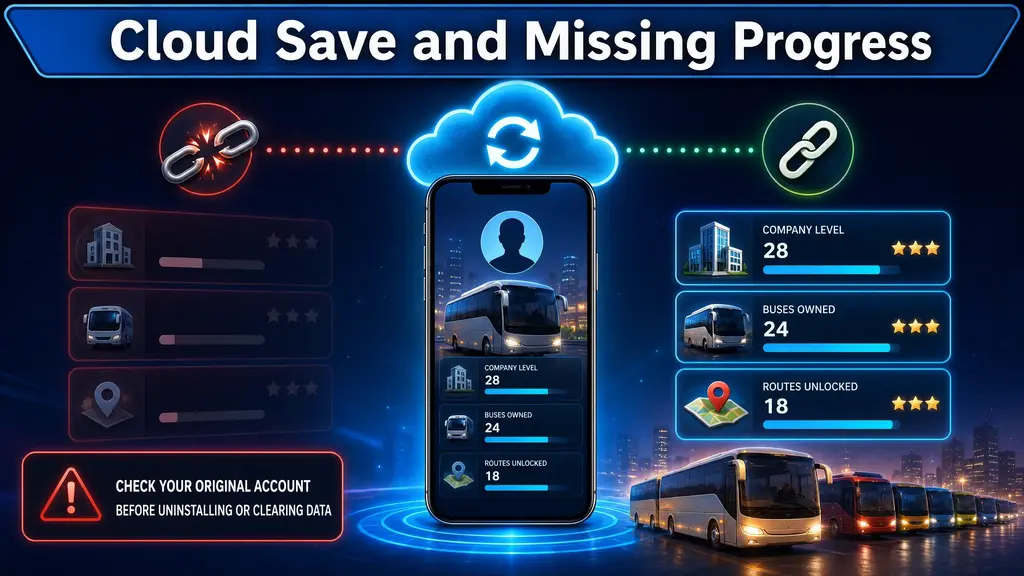
A login can succeed while your old progress still fails to appear. This usually points to an account or cloud sync issue. Your saved data may connect to a specific account or login method. Checking that account should come before any risky changes.
Why Your Progress May Not Appear
Several issues can stop your progress from loading.
Wrong account: You may have signed in with a different Google or linked account.
Cloud sync delay: The game may need more time to load your saved information.
Different login method: Your old progress may connect to another sign-in method.
Connection problem: A weak connection can interrupt cloud data loading.
Account synchronization issue: The game may not complete the connection with your saved account data.
These problems can make your account look empty even when your previous progress still exists.
What to Do If Your Progress Is Missing
Do not uninstall Bus Simulator Ultimate immediately. Follow these steps:
Avoid switching between several accounts while testing. If your company progress, buses, or career data still does not appear, stop before clearing app data. A missing profile does not always mean permanent data loss. The game may simply use the wrong account.
Can You Lose Progress After Reinstalling?
Reinstalling can affect locally stored game information. The risk depends on how your progress connects to your account. Cloud-linked progress can return when you sign in with the correct account and the game supports cloud recovery. Local data stays on the device until you remove the app or its stored data. It may not return after an uninstall. Guest progress can carry more risk because it may depend on local device data.
For this reason, confirm your account before reinstalling. If your Bus Simulator Ultimate cloud save works correctly, recovery may be easier after changing or resetting a device. If you use Guest mode, take extra care before clearing data or changing phones. Players with missing progress should treat account recovery as the first step. Reinstallation should come later, after you confirm where your saved data lives.
Bus Simulator Ultimate Login Problem on Android
Android users can face login issues for different reasons. The problem may involve the game, Google services, network, or account settings. The same basic checks work across many Android phones. Menu names may differ between manufacturers. This troubleshooting path covers Samsung, Xiaomi, Redmi, Poco, Oppo, Huawei, and Google Pixel devices.
Android Quick Fix Checklist
Work through these checks in order. Start with the simplest steps before changing stored app data.
1. Check your internet
Open another app or website first. Then switch between Wi-Fi and mobile data if needed.
2. Check Google Play Games
Open Google Play Games and confirm that the correct Google account is active. Make sure that account matches your game progress.
3. Check Google Play Services
Make sure Google Play Services has the latest available update. This service supports Google account authentication on Android.
4. Update the game
Open the Google Play Store and check for a Bus Simulator Ultimate update. Install it if one appears.
5. Force stop the game
Open your phone’s app settings. Select Bus Simulator Ultimate and tap Force Stop. Then open the game again.
6. Clear the cache
Open the game’s storage settings and select Clear Cache. Do not select Clear Data unless you understand the risks.
7. Check account sync
Open your Google account settings. Make sure automatic sync works correctly and that you use the original account.
8. Restart your phone
Restart the device after completing the checks. Then open Bus Simulator Ultimate and test the login again. These steps cover most common causes of a Bus Simulator Ultimate login problem on Android. If the issue continues, check the exact error message before trying more advanced recovery steps. The error can point toward an account, server, authentication, or connection problem.
Bus Simulator Ultimate Login Problem on iPhone and iPad
iPhone and iPad users can face different login issues from Android players. Apple devices use Game Center and Apple Account services for supported game features. If your Bus Simulator Ultimate iOS login fails, check the account and device settings first. Avoid deleting the game before checking your saved progress.
Check Game Center
Open the Game Center settings on your iPhone or iPad. Make sure you are signed in with the Apple Account linked to your game activity. Then open Bus Simulator Ultimate and try the login again. If Game Center does not load your profile correctly, sign out and sign back in only after confirming your account details. Do not switch to another Apple Account during troubleshooting. The wrong account may not contain your previous progress.
Check Apple Account
Your Apple Account can affect Game Center access and related game data. Open your device settings and check the signed-in account. Confirm that you use the same account connected to your previous game activity. If you recently changed devices, check the old account before creating a new profile. This can help prevent confusion when your saved progress does not appear.
Check Internet
A stable connection helps the game communicate with its online services. Try these steps:
If the game fails on one network but works on another, your connection may cause the login problem.
Update iOS and the Game
An outdated iOS version can cause compatibility issues with newer apps. Open your device settings and check for an available iOS update. Then open the App Store and check Bus Simulator Ultimate for an available update. Install updates before trying more advanced troubleshooting. Restart the device after completing the updates. Then test the login again.
Restart iPhone or iPad
A restart can clear temporary system issues. Close Bus Simulator Ultimate first. Then restart your iPhone or iPad. After the device starts, reconnect to Wi-Fi or mobile data. Open the game and try signing in again. This simple step can help when the game gets stuck during authentication or loading.
Offload the App Instead of Immediately Deleting It
iOS provides an Offload App option that differs from deleting an app. Offloading removes the app itself but keeps its documents and data on the device. Deleting the app removes the application and its stored data from the device. This difference matters when you are dealing with a login or progress problem. If you decide to use Bus Simulator Ultimate offload app, check your account and saved progress first.
Do not assume offloading will solve every account problem. The issue may still involve Game Center, your Apple Account, the internet, or the game’s online services. If your progress is missing, confirm the original account before removing the app. This gives you a safer path when troubleshooting Bus Simulator Ultimate login on iOS.
What to Do If Bus Simulator Ultimate Is Stuck on the Login Screen
Bus Simulator Ultimate can sometimes remain on the login or loading screen. Some players may also see a black screen or repeated authentication loop. The problem can involve your connection, account, app, or game servers. Follow the steps in order.
Wait Briefly for Server Authentication
Give the game a short moment to complete authentication. Do not tap the login button repeatedly. A slow connection or busy server can delay the login process. If the screen remains stuck, move to the next step.
Check Your Internet
Test your connection with another app or website. Then switch between Wi-Fi and mobile data. A different network can help identify a connection problem.
Disable Your VPN
Turn off your VPN before trying again. A VPN can change your connection route and affect communication with game servers. Open Bus Simulator Ultimate again after disabling it.
Restart the Game
Close the game completely. Wait a few seconds before opening it again. Then try the login process once more.
Force Stop Bus Simulator Ultimate
On Android, open your app settings. Select Bus Simulator Ultimate and tap Force Stop. Then reopen the game. This can help when an app process becomes stuck during authentication.
Restart Your Device
Restart your iPhone, iPad, or Android phone. Reconnect to your internet after the device starts. Then open the game and test the login again.
Check for Updates
Check the App Store or Google Play Store for a game update. Android users should also check Google Play Games and Google Play Services. Install available updates before trying the login again.
Check Your Account
Confirm that you use the original account linked to your progress. Android users should check their Google Play Games account. iPhone and iPad users should check their Apple Account and Game Center. A wrong account can cause the game to load a different profile.
Check Server Status
If your internet and account work normally, the game may have a server-side issue. Other signs include repeated authentication failures and cloud loading problems. If other players report the same issue, wait and try again later.
Contact Support If the Problem Continues
Contact official support if the login screen remains stuck after these checks. Include the exact error, device model, game version, and a screenshot. Explain when the problem started. Do not immediately uninstall the game if your progress matters. Confirm your account and saved data first. This approach can help when Bus Simulator Ultimate is stuck on the login screen, black screen, connection loop, or authentication loop.
Should You Clear Data or Reinstall Bus Simulator Ultimate?
Clearing data or reinstalling can help with some app problems. However, these steps deserve extra care when your progress is missing. Try safer fixes first. Confirm your account and saved progress before removing stored game data.
When Clearing Cache Is Reasonable
Clearing the cache makes sense when temporary files may cause problems. It can help after:
On Android, open the app settings for Bus Simulator Ultimate. Then select Storage and choose Clear Cache. This removes temporary files without taking the same action as clearing app data. After clearing the cache, reopen the game and test the login.
Why Clear Data Is Different
Clear Data or Clear Storage removes stored app information from your device. This action goes beyond removing temporary cache files. It can affect local game information, settings, and login details. That makes it a poor first choice when your progress already looks missing. Before using Clear Data, confirm that your game account and cloud save work correctly. If you use Guest mode, take extra care. Your progress may depend more heavily on local data.
When Reinstalling Makes Sense
Reinstalling can make sense when normal troubleshooting fails. Consider it only after you have:
A fresh installation can fix damaged app files. However, reinstalling does not fix every login problem. It cannot solve an incorrect account, server outage, or authentication issue.
What to Check Before Uninstalling
Before uninstalling Bus Simulator Ultimate, confirm the account linked to your progress. Android users should check Google Play Games and their Google account. iPhone and iPad users should check Game Center and their Apple Account. Also check whether your cloud save has loaded correctly. If you use a Guest account, take extra care before deleting the game. Do not uninstall the game simply because your progress disappeared. First confirm that you use the original account. A safer troubleshooting order is simple:
Check the account → Check the connection → Clear cache → Restart → Check updates → Confirm saved progress → Consider reinstalling.
This order reduces unnecessary risk while fixing a Bus Simulator Ultimate login problem.
Bus Simulator Ultimate Login Problem After an Update
A Bus Simulator Ultimate update can sometimes change how the game connects with account services. A login problem may appear soon after installing a new version. The issue can come from authentication, Android services, cached files, account sync, or server load.
Authentication Changes
A new game version may change how account authentication works. This can affect Google Play Games, account sessions, or other supported login methods. If login worked before the update but fails afterward, check your account first. Do not assume that your password or account suddenly became invalid.
Google Play Games Compatibility
Android players should check Google Play Games after a game update. Open Google Play Games and confirm that your correct Google account remains active. Then open Bus Simulator Ultimate and try signing in again. If Google Play Games also behaves strangely, update it before testing the game.
Google Play Services
Google Play Services supports several account functions on Android. An older version may not work correctly with a newer game version. Check for updates through the Google Play Store. After updating Google Play Services, restart your phone. Then open Bus Simulator Ultimate and test the login again.
Cached Files
A game update can leave older temporary files on your device. Those files can sometimes interfere with normal app behavior. Try clearing the Bus Simulator Ultimate cache before clearing app data. Then reopen the game and check whether the login works. Do not clear storage when your saved progress already looks missing.
Account Synchronization
Updates can sometimes expose existing account sync problems. Check that you use the same Google account as before. Make sure Google account sync works correctly. Then open Google Play Games and confirm your account again. If your progress does not appear, avoid creating a new account.
Server Load
A major update can bring many players online at the same time. Heavy server traffic can slow authentication and cloud services. You may notice slow loading, repeated login attempts, or connection errors. If your internet works normally, wait and try again later.
App Version Mismatch
Your game may not finish updating correctly. Check the Google Play Store or App Store for another available update. Make sure the installed version matches the latest version offered for your device. Also check whether your operating system needs an update. If the Bus Simulator Ultimate update caused the login problem, work through these checks before reinstalling. Start with your account, then check Google Play Games, updates, cache, and connection. This order protects your saved progress while you troubleshoot.
Does Bus Simulator Ultimate Login Affect Multiplayer and Career Mode?
Yes, login can affect features that rely on online services and saved account data. A login problem does not always block every game mode. The effect depends on how each feature stores and retrieves your game data. Bus Simulator Ultimate Surprise Route
Multiplayer
Multiplayer features need an active online connection. A failed login can prevent the game from connecting to account or online services. You may also see problems loading your profile or multiplayer-related data. Check your account and internet connection before assuming your multiplayer progress disappeared.
Ultimate League
Ultimate League can involve online services and account-related data. A login failure may stop the game from loading your profile correctly. If the league data does not appear, confirm that you use the original account. Do not create a new account while trying to restore your previous progress.
Career Mode
Career mode can contain important progress linked to your game account or saved data. A login issue may make your previous career progress appear missing. Check the original account before changing app data. If your career progress returns after signing in correctly, the issue likely involved account selection or synchronization.
Company Progress
Your company progress can include information such as earnings, development, and other game activity. If the wrong account loads, this information may not appear. A cloud sync problem can also delay progress loading. Give the game time to reconnect after restoring the correct account.
Bus Fleet
Your bus fleet may appear different when the game loads another profile. Do not assume that your buses disappeared permanently. First, check your login account and cloud connection. This is especially important after switching phones or reinstalling the game.
Saved Progress
Saved progress depends on how the game stores your data. Cloud-linked progress can return after you sign in with the correct account. Local progress may behave differently, especially when you clear app data or uninstall the game. Guest accounts can also carry more risk during device changes.
Online Mode
Online features need a working connection to the game’s services. A login problem can prevent authentication before online features load. If online mode fails while other apps work normally, check the game’s connection and account status. If the problem affects several online features at once, a server issue may also exist.
When your Bus Simulator Ultimate login fails, focus on account recovery before changing stored game data. This gives you a better chance of keeping your career, company progress, bus fleet, and other saved information intact.
How to Contact Zuuks Games About a Login Problem
If normal troubleshooting does not fix the issue, contact Zuuks Games through its official support channels. Give clear details about the problem. Avoid sending passwords or verification codes.
Before Contacting Support
Collect the information related to your Bus Simulator Ultimate login problem first. Check your account and note the login method you normally use. You should know:
Take a screenshot if the game shows an error. If your progress is missing, mention that clearly. Include the approximate date when you last accessed the account successfully. If you made in-app purchases, keep the related receipts available. They may help support identify your account or purchase history.
What to Include in Your Support Request
Write a short and clear explanation of the issue. Include the following details:
You can contact Zuuks Games using the support details provided for the game:
support@zuuks.com
help@zuuks.com
Explain what you already tried before contacting support. For example, mention whether you restarted the phone, updated the game, checked Google Play Games, or changed networks. Do not send your password, verification codes, or other private security information. If your Bus Simulator Ultimate account contains important career progress, company progress, or buses, explain that in your request. This helps support understand why account recovery matters. Keep your original account details consistent throughout the support conversation. Avoid creating multiple new accounts while waiting for a response.
Frequently Asked Questions
Why can’t I log in to Bus Simulator Ultimate?
Check your internet, Google Play Games account, game updates, and Google Play Services. Then restart the game.
How do I fix the Bus Simulator Ultimate Google Play login problem?
Open Google Play Games and select the correct Google account. Update Google Play Services and try logging in again.
Why does Bus Simulator Ultimate say I must log in to Play Games?
The game may not detect your Google Play Games session. Sign in with the correct Google account and reopen the game.
How do I recover my Bus Simulator Ultimate account?
Use your original Google, Facebook, Guest, or Zuuks account. If recovery fails, contact Zuuks support with your account details.
Will clearing cache delete my Bus Simulator Ultimate progress?
No, clearing cache removes temporary files. Avoid Clear Data because it can remove stored app information.
Will reinstalling Bus Simulator Ultimate delete my progress?
Reinstalling can remove local data. Confirm your account and cloud save before uninstalling the game.
Why is my Bus Simulator Ultimate progress missing?
Check that you use the original account and login method. A sync delay or connection issue can also prevent progress from loading.
Why is Bus Simulator Ultimate stuck on the login screen?
Check your internet, disable VPN, restart the game, and update it. Persistent issues may involve account authentication or servers.
How do I fix the Bus Simulator Ultimate 403 login error?
Check your account, Google Play Services, and connection first. If 403 continues across networks, the issue may involve authentication or server access.
Final Troubleshooting Checklist
Use this quick checklist before trying advanced fixes: