How to Improve FPS in Bus Simulator: Complete Guide to Fix Low FPS, Lag, and Stuttering
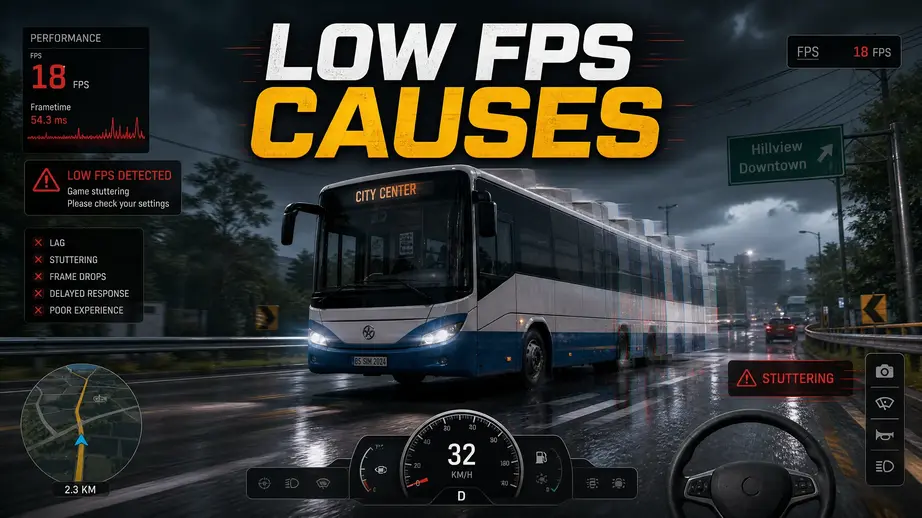
A smooth frame rate makes every route more enjoyable. Sudden FPS drops, lag, and stuttering can ruin the driving experience. Many players notice these problems in busy cities, heavy traffic, or bad weather. Frame pacing issues can also make the game feel choppy, even when the FPS counter looks stable.
Several factors affect performance. High graphics settings, AI traffic, pedestrian density, outdated GPU drivers, background apps, and limited hardware often reduce FPS. Some Bus Simulator games also place extra load on the CPU because they simulate traffic, vehicle physics, and large maps at the same time. This guide explains how to improve FPS in Bus Simulator with practical steps that work. You’ll learn how to adjust graphics settings, reduce stuttering, fix FPS drops, and improve overall performance. The guide also covers Windows tweaks, GPU settings, and hardware tips for low-end and mid-range PCs.
The recommendations apply to Bus Simulator 21, Bus Simulator 21 Next Stop, Bus Simulator 18, Bus Simulator Ultimate (BUSSID), The Bus, and Bus Simulator Indonesia. While each game uses a different engine, many performance fixes work across the series. By the end of this guide, you’ll know which settings have the biggest impact on FPS, which changes offer the best results, and which tweaks you can skip. That helps you spend less time troubleshooting and more time driving.
Why Is Your FPS Low in Bus Simulator?
Low FPS usually has more than one cause. Your game may run well in open areas but slow down in cities. Heavy traffic, detailed environments, and demanding graphics settings can push your PC beyond its limits. Bus Simulator games render large maps, AI vehicles, pedestrians, weather effects, and vehicle physics at the same time. Each feature uses CPU or GPU resources. If one component reaches its limit, your frame rate drops. In many cases, changing a few graphics settings delivers a noticeable FPS boost without reducing visual quality too much.
Graphics Settings Are Too High
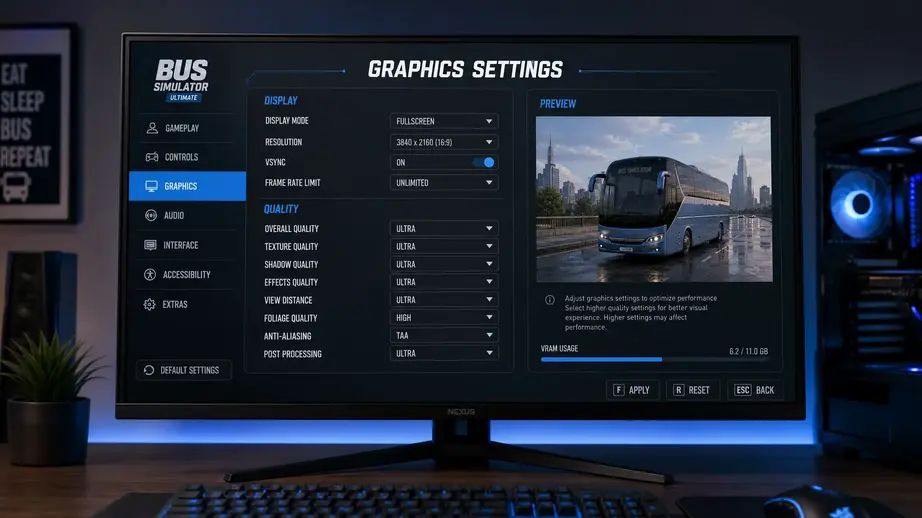
Graphics settings have the biggest impact on performance. Running every option at the highest preset may look good, but it can lower FPS and increase stuttering. This happens more often on low-end and mid-range PCs. Start by adjusting the settings below before changing anything else.
Shadows
Shadow quality is one of the most demanding graphics options. Every vehicle, building, tree, and street object creates shadows that your GPU must render in real time. High or Ultra shadows can reduce FPS, especially in crowded cities or during sunrise and sunset. Lowering shadows to Medium or Low often gives a quick performance boost with only a small change in image quality.
Anti-Aliasing
Anti-Aliasing smooths jagged edges on roads, buses, and buildings. Higher modes need more GPU power because they process extra image data every frame. If your game struggles to maintain stable FPS, switch to a lighter option like FXAA. You can also lower the Anti-Aliasing level if the game offers multiple choices. This change often improves frame rate while keeping visuals clear enough for gameplay.
Resolution
Higher resolutions increase the number of pixels your graphics card must render. A game running at 1920×1080 demands much more GPU power than the same game at 1600×900 or 1280×720. Lowering the resolution remains one of the fastest ways to increase FPS in Bus Simulator. If the image looks too soft, try reducing other graphics settings first before making a larger resolution change.
Draw Distance
Draw distance controls how far the game renders buildings, vehicles, trees, and other objects. Longer distances increase CPU and GPU workload because more objects stay visible at once. A medium draw distance usually offers a good balance between image quality and performance. This setting becomes more important in large maps with dense traffic.
Post Processing
Post-processing adds visual effects after each frame is rendered. These effects may include bloom, ambient occlusion, depth of field, motion blur, and color correction. While these features improve visual quality, they also consume GPU resources. Lowering or disabling unnecessary post-processing effects can reduce lag, improve frame pacing, and deliver smoother gameplay without changing the core graphics quality.
CPU Bottleneck
Your graphics card is not always the problem. Many Bus Simulator games rely heavily on the CPU to manage the world around you. If the processor cannot keep up, your FPS drops even when GPU usage stays low.
AI Traffic
Every AI vehicle follows routes, reacts to traffic lights, and avoids collisions. The CPU calculates these actions every second. Higher traffic density creates more calculations. Busy city routes often reduce FPS because the processor handles dozens of vehicles at once. Lowering traffic density can improve frame rate on low-end and older PCs.
Pedestrians
Pedestrians also consume CPU resources. Each character has movement, animations, and pathfinding that update continuously. Crowded sidewalks increase the workload. Reducing pedestrian density often improves performance without changing the driving experience.
Physics Calculations
Bus Simulator games calculate vehicle weight, suspension, steering, braking, and collisions in real time. These physics calculations become more demanding on large maps with heavy traffic. If your CPU reaches full usage, you may notice FPS drops and micro-stutters. Lowering CPU-intensive settings like traffic, pedestrians, and draw distance usually delivers better results than reducing texture quality.
GPU Limitations
The GPU renders every frame you see on screen. If it cannot keep pace with the game’s graphics settings, your FPS will fall.
VRAM
VRAM stores textures, shadows, and other graphics data. High-resolution textures need more video memory. When VRAM runs out, the game moves data between the GPU and system memory. This process often causes stuttering and longer loading times. Lowering texture quality helps if your graphics card has limited VRAM.
Older Graphics Cards
Older GPUs often struggle with modern lighting effects, high-resolution textures, and advanced post-processing. Running High or Epic presets on aging hardware can lead to unstable frame rates. Medium settings usually provide a better balance between image quality and performance.
Laptop GPUs
Laptop graphics chips often run at lower power limits than desktop models. They also share cooling space with the CPU. Long gaming sessions can reduce performance as temperatures rise. Lower graphics settings and a reasonable FPS limit help maintain smoother gameplay.
Background Programs
Programs running in the background compete for CPU time, RAM, and disk access. Closing unnecessary apps gives Bus Simulator more system resources.
Common examples include:
Steam also notes that overlays and background applications can affect game performance. Closing them before launching the game may reduce lag and improve stability.
Thermal Throttling
High temperatures can reduce performance even on powerful hardware. This safety feature protects your components from overheating.
High CPU Temperatures
Most modern processors lower their clock speed when temperatures become too high. Lower clock speeds reduce processing power, which can cause FPS drops during busy gameplay. Dust buildup, poor airflow, or an aging CPU cooler often contributes to this problem.
GPU Temperatures
Graphics cards also reduce clock speeds when they become too hot. You may notice smooth gameplay at first, followed by lower FPS after 20 to 30 minutes. Clean fans, better case airflow, and updated fan profiles can help keep temperatures under control.
Reduced Clock Speeds
Thermal throttling affects both the CPU and GPU. Lower clock speeds mean fewer calculations every second, which leads to lower FPS and inconsistent frame pacing. Use tools like MSI Afterburner and RivaTuner Statistics Server (RTSS) to monitor CPU usage, GPU usage, temperatures, clock speeds, and frame times while you play. These readings make it easier to identify whether your system struggles with heat, limited hardware, or demanding game settings.
Best Graphics Settings for Higher FPS
The right graphics settings can improve FPS without making the game look poor. Focus on options that reduce GPU and CPU load first. Test each change before moving to the next one. This method helps you find the best balance between image quality and smooth gameplay.
Resolution
Resolution controls how many pixels your GPU renders. Higher resolutions look sharper but require more graphics power.
Lower the resolution if you still experience FPS drops after reducing shadows and other demanding settings. This change often provides the fastest performance boost, especially on systems with older GPUs or limited VRAM.
Shadow Quality
Shadow quality has one of the biggest effects on FPS. The game must calculate and render shadows for buses, buildings, trees, traffic, and other objects in real time. Higher settings increase the GPU workload and can also affect CPU performance in busy areas. If you notice FPS drops in cities or during sunrise, sunset, or rainy weather, lower the shadow quality first. This change usually improves performance without making the game look much different.
Recommended settings:
Avoid Ultra or Epic shadows unless your hardware can maintain a stable frame rate. A consistent 60 FPS provides a smoother experience than higher-quality shadows with frequent stuttering.
Texture Quality
Texture quality affects how detailed roads, buses, buildings, and other objects appear. Unlike shadows, this setting depends more on VRAM than raw GPU power. VRAM stores texture data on your graphics card. If your GPU has enough VRAM, you can often use higher texture settings with little impact on FPS. When VRAM fills up, the game starts moving data from system RAM. That process can cause stuttering, longer loading times, and sudden FPS drops.
Use these settings based on your graphics card:
If your game feels smooth but starts stuttering after driving for a while, your VRAM may be reaching its limit. Lowering texture quality can improve stability without changing the overall gameplay experience.
Anti-Aliasing
Anti-Aliasing smooths jagged edges on roads, buses, signs, and buildings. Higher-quality methods improve image clarity but require more GPU power.
FXAA
FXAA (Fast Approximate Anti-Aliasing) has the smallest performance impact. It improves edge smoothing while keeping FPS high. The image may look slightly softer, but most players will not notice it during gameplay.
TAA
TAA (Temporal Anti-Aliasing) delivers better image quality than FXAA. It reduces flickering on distant objects but uses more GPU resources. Some games may also show slight blur while moving.
MSAA
MSAA (Multisample Anti-Aliasing) produces sharp visuals but places a heavy load on the GPU. It can reduce FPS, especially at 1080p or higher resolutions. Older graphics cards often struggle with this setting.
Recommendation
If you need more FPS, lower Anti-Aliasing before reducing texture quality. This change often improves performance with only a small loss in visual quality.
View Distance
View distance controls how far the game renders buildings, vehicles, trees, and other objects. A higher setting forces the CPU to process more objects at once. Use Medium on low-end and mid-range PCs. Increase it only if your CPU has enough headroom and your FPS stays stable.
Traffic Density
Traffic density has a major impact on performance. Every AI vehicle needs pathfinding, physics, and collision detection. Heavy traffic can cause FPS drops in busy cities and at large intersections. Lower this setting if your game slows down during crowded routes.
Pedestrian Density
Pedestrians increase the CPU workload in the same way as traffic. More characters mean more animations and movement calculations. Set pedestrian density to Low or Medium if you experience stuttering in urban areas. This change often improves frame rate with little effect on gameplay.
Weather Effects
Rain, fog, and night driving place extra load on your GPU.
If FPS drops during bad weather, lower effects like reflections, shadows, or post-processing instead of reducing texture quality.
V-Sync
V-Sync matches the game’s frame rate with your monitor’s refresh rate. It prevents screen tearing but can increase input delay.
Disable V-Sync if:
Enable V-Sync if:
Motion Blur & Post Processing
Motion blur makes fast movement look smoother but does not improve performance. Most players prefer to disable it for a sharper image. Post-processing includes effects like bloom, depth of field, and ambient occlusion. These effects increase GPU usage.
Recommendation:
These settings usually provide better FPS while keeping the game visually appealing.
Best Bus Simulator Settings for Low-End PCs
Low-end PCs can still deliver smooth gameplay with the right settings. Focus on stable FPS instead of maximum visual quality. Lower the settings that place the biggest load on your CPU and GPU. This approach reduces lag, minimizes stuttering, and keeps frame rates more consistent during busy routes.
| Setting | Recommended |
| Resolution | 1280×720 or 1600×900 |
| Texture Quality | Medium |
| Shadow Quality | Low |
| Traffic Density | Low |
| Pedestrian Density | Low |
| V-Sync | Off |
| Anti-Aliasing | FXAA or Off |
| Draw Distance | Medium |
These settings work well for most low-end systems running Bus Simulator 21, Bus Simulator 21 Next Stop, Bus Simulator 18, and The Bus. If you still experience FPS drops, lower the resolution before reducing texture quality. That change usually delivers the biggest performance gain.
Windows Optimization for Better FPS
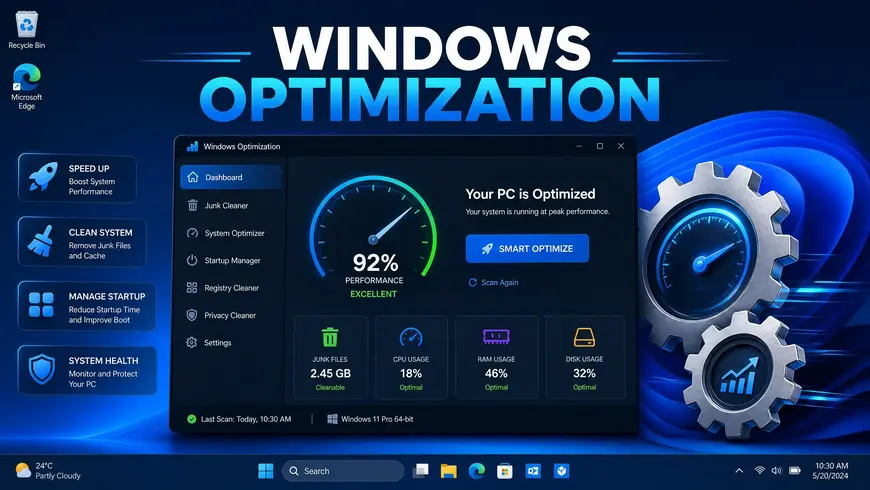
Windows settings can affect game performance as much as in-game graphics options. A few system changes can free up resources and reduce FPS drops, especially on low-end and mid-range PCs.
Update GPU Drivers
Graphics driver updates often include game-specific fixes, performance improvements, and bug fixes.
If your FPS suddenly drops after a driver update, try installing a stable previous version.
Enable High Performance Power Plan
Windows may limit CPU and GPU performance to save power. Switching to the High Performance power plan allows your hardware to run at higher clock speeds when needed. Use this mode while gaming, especially on desktop PCs. Laptop users should keep the charger connected for the best results.
Close Background Applications
Background programs use CPU, RAM, and disk resources. Closing them gives Bus Simulator more system resources.
Common examples include:
Close only the apps you do not need while playing.
Disable Startup Apps
Many applications start automatically when Windows boots. They continue running even if you never open them. Open Task Manager > Startup Apps and disable unnecessary programs. This reduces background activity and frees up memory before launching the game.
Game Mode
Windows Game Mode gives games higher priority and reduces some background tasks. Leave Game Mode enabled on Windows 10 and Windows 11. It can help maintain more consistent performance during gameplay.
Hardware Accelerated GPU Scheduling
Hardware Accelerated GPU Scheduling lets the graphics card handle some scheduling tasks instead of the CPU. On supported hardware, it can improve frame pacing and reduce input latency. Results vary by system, but many players notice smoother gameplay. You can enable it from Settings > System > Display > Graphics > Default graphics settings.
SSD vs HDD
An SSD does not directly increase FPS, but it improves the overall gaming experience.
If Bus Simulator is installed on an HDD, moving it to an SSD is one of the best upgrades for smoother gameplay. Best Buses to Choose in Career Mode
NVIDIA Control Panel Settings
The NVIDIA Control Panel lets you adjust GPU settings for better gaming performance. These changes can improve frame stability and reduce input delay. Apply them only to Bus Simulator if you do not want to affect other games.
Power Management Mode
This setting controls how your graphics card uses power. Select Prefer maximum performance. It keeps the GPU at higher clock speeds during gameplay and helps prevent FPS drops caused by power saving.
Low Latency Mode
Low Latency Mode reduces the number of frames waiting to be rendered. This can improve responsiveness while driving.
Texture Filtering
Texture filtering affects image quality and GPU workload. Set Texture Filtering – Quality to High Performance. This setting reduces GPU load and can increase FPS with only a small change in visual quality.
Shader Cache
Shader Cache stores compiled shaders on your drive. The game loads them faster instead of compiling them again. Keep Shader Cache enabled. It can reduce shader-related stuttering and improve frame consistency after the first game launch.
Vertical Sync
The NVIDIA Control Panel also lets you control V-Sync.
AMD Graphics Settings
AMD Software includes several features that can improve responsiveness and smooth gameplay. The best settings depend on your hardware, but these options work well for most Bus Simulator players.
Radeon Anti-Lag
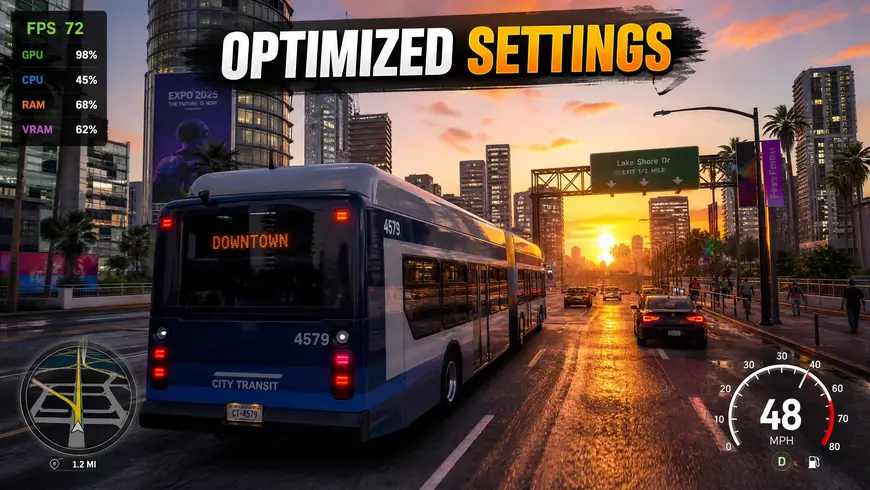
Radeon Anti-Lag reduces the delay between your input and what appears on screen. Steering and braking feel more responsive, especially when your GPU runs near full usage. Recommendation: Keep Radeon Anti-Lag enabled.
Radeon Boost
Radeon Boost lowers the rendering resolution during fast camera movement. This reduces GPU load and can increase FPS in demanding areas. The image may become slightly softer while moving, but many players prefer the extra performance. Recommendation: Enable it if your GPU struggles to maintain stable FPS.
Image Sharpening
Image Sharpening restores detail that can be lost after lowering the resolution or using FXAA. It has a small performance impact and helps keep roads, signs, and buses looking clear. Recommendation: Enable it with a moderate sharpening level.
Radeon Chill
Radeon Chill limits FPS to reduce power consumption and GPU temperature. It works well for quieter systems but can lower performance during gameplay. Recommendation: Turn Radeon Chill Off if your goal is the highest and most stable FPS. Enable it only if you want lower temperatures or reduced power usage.
Steam Fixes That Can Improve FPS
If you play Bus Simulator through Steam, a few built-in tools can solve performance issues. These fixes take only a few minutes and may improve stability after a game update or unexpected crash.
Verify Game Files
Missing or corrupted game files can cause FPS drops, stuttering, or crashes.
To verify your game files:
- Open Steam.
- Go to Library.
- Right-click Bus Simulator and select Properties.
- Open Installed Files.
- Click Verify integrity of game files.
Steam will scan the installation and replace any damaged files automatically. Valve recommends this step when a game shows performance or stability issues. Does Bus Simulator Mod APK Require Root?
Disable Steam Overlay
The Steam Overlay runs in the background while you play. Although it has a small impact on most systems, it can reduce FPS on low-end PCs.
To disable it:
- Open Steam.
- Go to Library.
- Right-click Bus Simulator and select Properties.
- Turn off Enable the Steam Overlay while in-game.
Test the game after disabling the overlay to see if frame pacing or stuttering improves.
Launch Options
Most Bus Simulator games do not require special launch commands. Unsupported parameters can cause unexpected issues.
Avoid random launch commands from forums unless the developer recommends them. Unsupported parameters rarely improve FPS and may create new problems.
How to Reduce Stuttering in Bus Simulator
Stuttering feels different from low FPS. Your frame rate may look fine, but the game still pauses or skips frames. These short interruptions often come from inconsistent frame delivery rather than low average FPS.
Improve Frame Pacing
Stable frame pacing makes gameplay feel smoother. Large jumps between frames create noticeable micro-stutters. Limit your FPS to a value your PC can maintain consistently. A steady 60 FPS usually feels better than frame rates that constantly rise and fall.
Close Background Apps
Background programs compete for CPU, RAM, and storage access. This can interrupt the game’s performance. Close apps like Chrome, Discord, OBS Studio, and unnecessary launchers before starting Bus Simulator. This gives the game more system resources.
Let Shader Compilation Finish
Some games compile shaders after updates or the first launch. During this process, you may notice temporary stuttering. Play for a few minutes after a major update before judging performance. Future sessions often run more smoothly once shader compilation finishes.
Install the Game on an SSD
An SSD loads game assets much faster than an HDD. This helps the game stream textures and map data without delays. If your game stutters while driving through new areas, moving it to an SSD can reduce those interruptions.
Check RAM Usage
Insufficient RAM can force Windows to use the storage drive as virtual memory. This slows down data access and increases stuttering. Close unused programs before gaming. If your system has 8 GB of RAM, upgrading to 16 GB can improve overall smoothness in demanding Bus Simulator titles.
Keep Drivers Updated
Outdated graphics drivers may cause performance issues after game updates. Driver updates often include fixes for stability, shader performance, and game compatibility. Download drivers directly from NVIDIA, AMD, or Intel to keep your system running reliably.
Fix FPS Drops in Busy Cities
Many players notice smooth gameplay on open roads but lower FPS in cities. Urban areas place a heavier load on both the CPU and GPU. More vehicles, buildings, lights, and reflections require extra processing power.
AI Traffic
AI traffic is one of the biggest reasons for FPS drops. Every vehicle follows traffic rules, reacts to other vehicles, and updates its position in real time. Lower the traffic density if your frame rate falls in crowded areas. This setting can reduce CPU usage without changing the core gameplay.
Large Maps
Large cities contain more buildings, roads, and objects than rural areas. The game must load and render these assets as you drive. Lower the draw distance if you notice performance drops while entering busy districts. This reduces the number of objects the game processes at once.
Mirrors
Mirrors render the scene a second time from a different angle. This increases GPU workload, especially when using high mirror quality or multiple visible mirrors. Reduce mirror quality or update frequency if the game slows down in traffic. This setting often provides a quick FPS boost.
Reflections
Roads, buses, and windows use reflections to improve visual quality. Rainy weather increases this workload even more. Lower reflection quality to reduce GPU usage. Most players notice little difference during normal gameplay.
Dynamic Lighting
Street lights, vehicle headlights, traffic signals, and illuminated buildings all use dynamic lighting. Night driving increases the number of active light sources. If FPS drops after sunset, lower lighting or shadow settings before changing textures. This usually improves performance while keeping the game visually balanced.
Bus Simulator Version-Specific FPS Tips
Each Bus Simulator game uses a different engine and graphics system. The best settings can vary, but these tips target the most common performance issues for each version.
Bus Simulator 21
Bus Simulator 21 places a heavy load on both the CPU and GPU, especially in busy cities.
For better performance:
These changes usually improve FPS without affecting gameplay.
Bus Simulator 21 Next Stop
The Next Stop update includes performance improvements, but demanding areas can still cause FPS drops.
For smoother gameplay:
Bus Simulator 18
Bus Simulator 18 runs better on older hardware than newer titles, but high settings can still reduce performance.
Try these adjustments:
Bus Simulator Ultimate (BUSSID)
Bus Simulator Ultimate runs on Android and iOS devices. Performance depends on your phone’s hardware.
For higher FPS:
Bus Simulator Indonesia
Bus Simulator Indonesia includes several graphics options for low-end devices.
For stable gameplay:
The Bus
The Bus uses Unreal Engine, which can demand more CPU and GPU resources than other Bus Simulator titles.
For better FPS:
Recommended Hardware for Stable FPS
The right hardware makes it easier to maintain stable FPS. You do not need a high-end gaming PC to enjoy Bus Simulator. A balanced CPU, GPU, enough RAM, and an SSD deliver the best results.
| Hardware Level | CPU | GPU | RAM | SSD |
| Entry Level | Intel Core i3-12100F or AMD Ryzen 3 4100 | NVIDIA GTX 1650 or AMD RX 6400 | 16 GB | 500 GB SSD |
| Mid-Range | Intel Core i5-13400F or AMD Ryzen 5 5600 | NVIDIA RTX 3060 or AMD RX 6700 XT | 16–32 GB | 1 TB SSD |
| High-End | Intel Core i7-14700K or AMD Ryzen 7 7800X3D | NVIDIA RTX 4070 Super or AMD RX 7800 XT | 32 GB | 1 TB NVMe SSD |
Entry Level
This setup works well for 720p or 1080p gaming with Low or Medium settings. Lower traffic density and shadow quality if you notice FPS drops in busy cities.
Mid-Range
A mid-range PC can handle 1080p High settings in most Bus Simulator games. It also delivers smoother gameplay during heavy traffic and poor weather.
High-End
A high-end system provides stable FPS at 1080p or 1440p with High or Ultra settings. It also handles larger maps, dynamic lighting, and higher traffic density more comfortably.
Tools to Monitor FPS
You cannot improve performance without knowing what causes the problem. FPS monitoring tools show how your CPU, GPU, RAM, and frame rate behave during gameplay. They help you identify whether the issue comes from graphics settings, hardware limits, or background processes.
MSI Afterburner
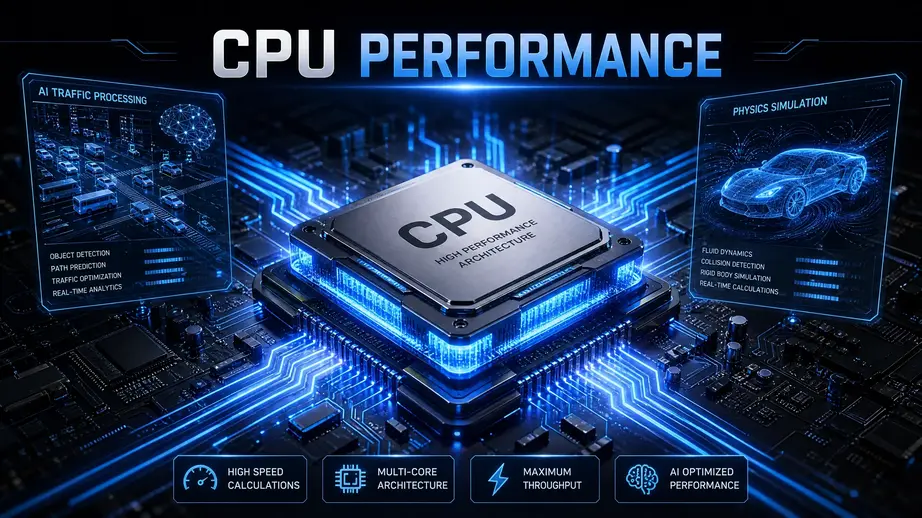
MSI Afterburner is one of the most popular performance monitoring tools. It displays GPU usage, CPU usage, temperatures, clock speeds, VRAM usage, and FPS in real time. Use it to check if your CPU or GPU becomes the performance bottleneck.
RivaTuner Statistics Server (RTSS)
RTSS works with MSI Afterburner to display an on-screen overlay while you play.
It shows important metrics like:
Frame-time data helps you detect micro-stutters that an FPS counter may not reveal.
Steam FPS Counter
Steam includes a built-in FPS counter that is easy to enable. Open Steam > Settings > In Game and turn on the In-Game FPS Counter. It displays your frame rate without installing extra software.
GeForce Experience
NVIDIA users can use GeForce Experience or the NVIDIA App to monitor FPS and basic system performance. It also makes driver updates easier and supports gameplay recording if needed.
AMD Software
AMD Software: Adrenalin Edition includes an in-game performance overlay. It displays FPS, GPU usage, CPU usage, VRAM, temperatures, and other hardware statistics while you play.
Why Monitoring Matters
Monitoring helps you choose the right fix instead of guessing.
Checking these metrics after each setting change helps you find the best balance between image quality and stable FPS.
Common Mistakes That Reduce FPS
Many players change graphics settings but overlook simple issues that hurt performance. Avoiding these mistakes can improve FPS and reduce stuttering.
Using Maximum Graphics Settings
Ultra settings put extra pressure on your CPU and GPU. Features like high shadows, reflections, and long draw distances have the biggest impact. Start with Medium settings and increase only the options your system can handle.
Using Old Graphics Drivers
Outdated GPU drivers may reduce performance or cause compatibility issues after game updates. Install the latest drivers from NVIDIA, AMD, or Intel to get the newest performance fixes.
Playing From a Full HDD
A nearly full hard drive slows data access. This can increase loading times and cause stuttering while driving through new areas. Keep enough free storage available. Installing the game on an SSD provides the best experience.
Ignoring Overheating
High CPU or GPU temperatures reduce clock speeds. Lower clock speeds lead to FPS drops and unstable frame rates. Clean dust from your PC, improve airflow, and monitor temperatures during long gaming sessions.
Running Too Many Background Apps
Browsers, recording software, launchers, and chat applications consume system resources. Close unnecessary programs before launching Bus Simulator. Your game will have more CPU time and available RAM.
Leaving FPS Unlimited
Unlimited FPS forces your GPU to render as many frames as possible. This increases heat, power usage, and GPU load. Set an FPS limit that matches your monitor or choose a frame rate your PC can maintain consistently.
Skipping Windows Updates
An outdated Windows installation can affect driver compatibility and game stability. Keep Windows updated to receive performance improvements, security updates, and bug fixes that support modern games.
Frequently Asked Questions
Why is Bus Simulator FPS so low?
High graphics settings, heavy AI traffic, outdated drivers, or weak hardware usually cause low FPS.
How can I get 60 FPS in Bus Simulator?
Lower shadows, traffic, and reflections, then update your GPU drivers and close background apps.
Does lowering shadows improve FPS?
Yes. Lowering shadow quality often provides one of the biggest FPS improvements.
Is an SSD better for Bus Simulator?
Yes. An SSD reduces loading times and helps prevent asset-loading stutters.
Can more RAM increase FPS?
Yes, if your PC runs out of memory. Upgrading to 16 GB also reduces stuttering.
Should I disable V-Sync?
Disable V-Sync for higher FPS. Enable it only if screen tearing becomes noticeable.
Why does FPS drop in cities?
Cities contain more traffic, pedestrians, buildings, and lighting, which increase CPU and GPU usage.
Does updating GPU drivers help?
Yes. New drivers often improve performance, stability, and game compatibility.
What are the best settings for low-end PCs?
Use 720p or 900p resolution, Low shadows, Medium textures, and Low traffic.
Can mods improve Bus Simulator performance?
Some optimization mods can help, but install only trusted mods that match your game version.
Final Thoughts
There is no single fix that works for every PC. The best settings depend on your CPU, GPU, RAM, and game version. Start with the graphics settings that affect performance the most. Keep your GPU drivers updated, close unnecessary background apps, and monitor system temperatures to avoid thermal throttling.
Apply one change at a time and test your FPS after each adjustment. Small improvements add up and often deliver smoother gameplay than one major tweak. With the right settings, you can enjoy a more stable frame rate, fewer stutters, and a better driving experience in Bus Simulator 21, Bus Simulator 21 Next Stop, Bus Simulator 18, Bus Simulator Ultimate, The Bus, and Bus Simulator Indonesia.