
How to Reduce Battery Drain While Playing Bus Simulator Ultimate (Complete Guide)
Bus Simulator Ultimate pushes your phone harder than many casual mobile games. It renders detailed buses, busy roads, changing weather, and real-time traffic. These features demand more power from your CPU, GPU, and display. As a result, your battery drains faster during long trips. If you want to know how to reduce battery drain while playing Bus Simulator Ultimate, you are in the right place. Many players notice high battery usage, phone overheating, frame drops, and shorter gaming sessions. These problems often come from graphics settings, high refresh rates, background apps, or poor battery optimization.
The good news is that you do not need a new phone to improve battery life. A few smart changes can reduce power consumption while keeping gameplay smooth. In this guide, you will learn the best battery-saving settings, graphics adjustments, and phone optimization tips for Bus Simulator Ultimate. You will also see how to reduce overheating, improve battery health, and enjoy longer gaming sessions without giving up a good experience. Google recommends using battery optimization features, managing background activity, and adjusting display settings to improve battery life. Android device makers also advise lowering screen brightness and refresh rate during demanding games to reduce power use.
Why Does Bus Simulator Ultimate Drain Battery So Fast?
Bus Simulator Ultimate places a heavy load on your phone. It runs detailed graphics, processes traffic, manages AI vehicles, and updates game physics in real time. Your processor, graphics chip, and display work together throughout every trip. This constant workload increases battery consumption. Several settings and phone features can make the problem worse. Understanding them helps you reduce battery drain while playing Bus Simulator Ultimate without sacrificing smooth gameplay.
High Graphics Settings
Graphics quality has the biggest effect on battery usage. Higher settings force your GPU to render more details every second. This increases power consumption and heat.
Ultra Graphics
Ultra graphics deliver the best visuals. Roads, buses, reflections, and weather effects look sharper. Your phone must work much harder to maintain these effects. Battery drains faster, especially during long routes.
High Texture Quality
High-resolution textures make buses, passengers, and buildings look more realistic. They also use more GPU power and RAM. On mid-range and low-end phones, high texture quality can increase battery usage and cause stuttering.
Dynamic Lighting
Dynamic lighting creates realistic daylight, night scenes, headlights, and weather effects. These calculations run continuously during gameplay. The extra processing increases battery consumption.
Shadows
Real-time shadows improve visual quality, but they require constant rendering. High shadow settings place extra load on the GPU. Lowering shadow quality often improves battery life with little impact on gameplay.
High FPS and Refresh Rate
Frame rate affects both smoothness and battery life.
30 FPS vs. 60 FPS
At 30 FPS, your phone renders fewer frames each second. This reduces CPU and GPU usage and helps extend battery life.
At 60 FPS, the game feels smoother, but your hardware works much harder. Many players notice faster battery drain and higher phone temperatures at this setting.
90Hz and 120Hz Displays
Many modern phones use 90Hz or 120Hz displays. Higher refresh rates make scrolling and animations smoother. They also require more power.
If you play Bus Simulator Ultimate at 60 FPS on a 120Hz display, your battery may drain much faster than on a 60Hz display. Switching to 60Hz can improve battery life during long gaming sessions.
Maximum Screen Brightness
Your display uses a large share of your phone’s battery. Maximum brightness makes the screen easier to see outdoors, but it also increases power consumption. It can raise your phone’s temperature during extended gameplay. A brightness level between 40% and 60% usually offers a good balance between visibility and battery life.
CPU and GPU Running at Full Load
Bus Simulator Ultimate performs many tasks at once. It handles vehicle physics, AI traffic, weather, maps, and graphics in real time. These tasks keep the CPU and GPU busy throughout your session. High processor usage increases battery drain and produces more heat. If your phone cannot keep up, performance may drop while battery usage continues to rise.
Background Apps Consuming Power
Apps running in the background compete for system resources. Social media apps, cloud backups, messaging services, music streaming, and automatic downloads continue using CPU, RAM, and network access while you play. Closing unnecessary background apps frees resources for the game. This reduces battery consumption and helps maintain stable performance.
Mobile Data, GPS, and Bluetooth
Wireless features also affect battery life. A weak mobile signal forces your phone to use more power to stay connected. GPS constantly updates your location, while Bluetooth searches for nearby devices. If you do not need these features during gameplay, turn them off. Using a stable Wi-Fi connection instead of mobile data can also reduce battery usage.
Phone Overheating and Thermal Throttling
Heat is one of the biggest causes of battery drain. Long gaming sessions, high graphics settings, and high refresh rates increase your phone’s temperature. As heat builds up, the processor reduces its speed to protect the hardware. This process is called thermal throttling.
Thermal throttling can lower FPS, create lag, and make gameplay less responsive. Meanwhile, the battery continues to lose power quickly. Keeping your phone cool helps maintain steady performance and extends battery life. Android developers also recommend reducing heavy workloads and controlling device temperature to improve battery efficiency during demanding tasks.
How to Reduce Battery Drain While Playing Bus Simulator Ultimate
You do not need to accept fast battery drain as part of the game. A few settings can make a big difference. Start with graphics quality because it has the biggest impact on battery life and phone temperature.
Lower Graphics Quality
Graphics quality controls how much detail the game renders. Higher settings improve visuals, but they also increase CPU and GPU usage. Lower settings reduce the workload and help your battery last longer.
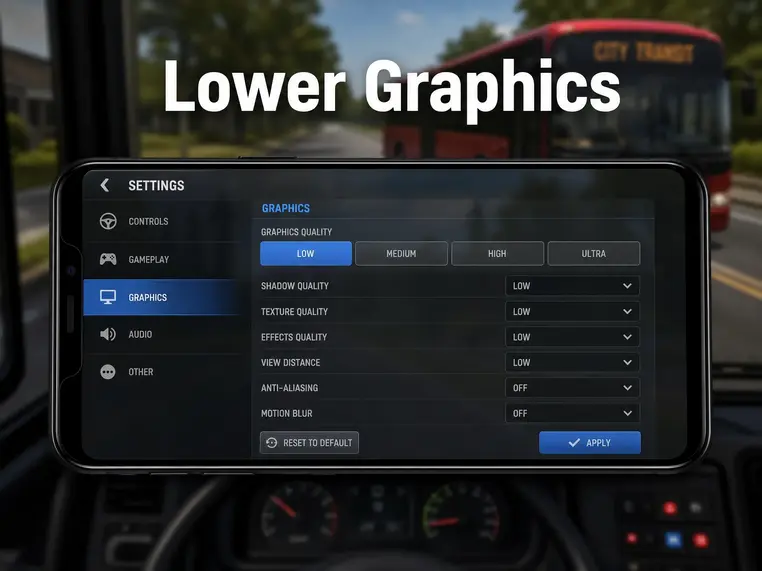
Low Graphics
Low graphics offer the best battery savings. This setting reduces texture detail, shadows, and visual effects. Your phone renders fewer objects, which lowers power consumption. It also helps reduce overheating on entry-level devices.
Best for:
Medium Graphics
Medium graphics provide the best balance between visuals and battery life. The game still looks clean, while your phone uses less power than High or Ultra settings. Most mid-range devices run smoothly at this level without excessive heat.
Best for:
High Graphics
High graphics improve texture quality, lighting, and environmental details. The better visuals come at a cost. Your GPU works harder, battery consumption increases, and the phone may heat up during long routes.
Best for:
Ultra Graphics
Ultra graphics unlock the highest visual quality. Road textures, weather effects, reflections, and shadows look more realistic. These improvements place the heaviest load on your hardware. Battery drains faster, and thermal throttling becomes more likely during extended gameplay.
Best for:
Which Graphics Setting Offers the Best Balance?
For most players, Medium graphics deliver the best mix of visual quality, smooth gameplay, and battery efficiency.
| Graphics Quality | Battery Usage | Phone Temperature | Visual Quality | Recommended For |
| Low | Very Low | Low | Basic | Low-end phones |
| Medium | Moderate | Low to Moderate | Good | Most Android phones |
| High | High | High | Very Good | Powerful devices |
| Ultra | Very High | Very High | Excellent | Flagship phones only |
If your phone heats up or the battery drops quickly, lower the graphics by one level. Many players notice a longer gaming session with only a small change in visual quality. This simple adjustment remains one of the most effective ways to reduce battery drain in Bus Simulator Ultimate, improve battery optimization, and keep performance steady during long trips.
Reduce FPS Limit
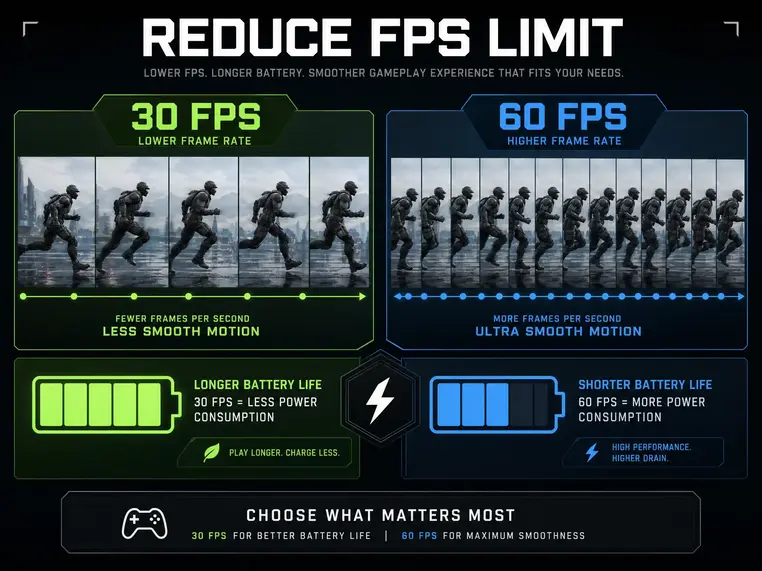
The frame rate, or FPS (Frames Per Second), determines how many images your phone renders each second. A higher FPS makes gameplay smoother, but it also increases CPU and GPU usage. That leads to faster battery drain and more heat. Reducing the FPS limit is one of the easiest ways to reduce battery drain while playing Bus Simulator Ultimate. It lowers the workload on your phone without changing every graphics setting.
30 FPS
A 30 FPS limit offers the best battery efficiency. Your phone renders half as many frames as it does at 60 FPS. This reduces power consumption, lowers phone temperature, and extends gaming time on a single charge. The game may feel less fluid, but driving remains smooth for most players.
Best for:
45 FPS
A 45 FPS limit gives you a good balance between smooth gameplay and battery savings. The game feels more responsive than 30 FPS while using less power than 60 FPS. Many mid-range phones handle this setting well without overheating.
Best for:
60 FPS
A 60 FPS limit delivers the smoothest driving experience. Animations look more fluid, and steering feels more responsive. Your CPU and GPU must render twice as many frames as 30 FPS. This increases battery consumption and raises device temperature during long sessions.
Best for:
FPS Comparison for Battery Savings
| FPS Limit | Battery Usage | Phone Temperature | Gameplay Smoothness | Recommended For |
| 30 FPS | Low | Low | Good | Maximum battery life |
| 45 FPS | Moderate | Moderate | Very Good | Most Android phones |
| 60 FPS | High | High | Excellent | Flagship devices |
If your phone supports both 60 FPS and a 120Hz display, battery drain can increase even more. Pairing 30 FPS or 45 FPS with a 60Hz refresh rate often provides the best balance between battery life, stable performance, and lower phone temperatures. Google’s Android performance guidance also recommends reducing rendering workload to lower power consumption during graphics-intensive apps. Limiting frame rate is one of the most effective ways to achieve that.
Lower Screen Brightness
Your display is one of the biggest battery users on your phone. A brighter screen needs more power, even if Bus Simulator Ultimate runs on low graphics. Lowering screen brightness is one of the quickest ways to reduce battery drain while playing Bus Simulator Ultimate. It also helps keep your phone cooler during long trips.
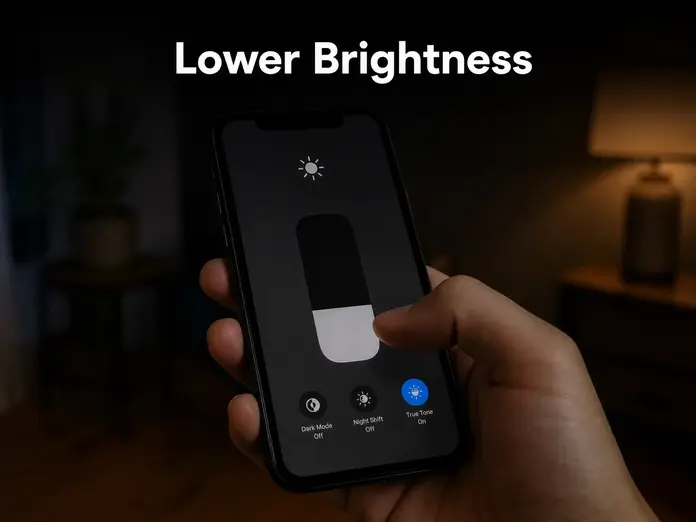
Manual Brightness
Manual brightness gives you full control over the display. Set the brightness only as high as you need. A lower level reduces display power consumption and extends battery life. It also reduces heat, especially during long gaming sessions. Manual brightness works best indoors, where lighting stays consistent.
Benefits:
Auto Brightness
Auto brightness changes the screen level based on your surroundings. This feature works well when you move between bright and dark places. However, it may raise brightness more than necessary in bright environments. That extra brightness increases battery usage during gameplay. If you play in the same room, manual brightness usually saves more battery than automatic adjustment.
Recommended Brightness Percentage
Most players do not need maximum brightness for a good gaming experience. Use the following guide to balance visibility and battery life.
| Brightness Level | Battery Usage | Visibility | Recommended For |
| 20%–30% | Very Low | Good indoors | Night gaming |
| 40%–60% | Moderate | Clear in most conditions | Best overall balance |
| 70%–80% | High | Better in bright rooms | Daytime gaming |
| 100% | Very High | Maximum visibility | Outdoor use only |
A brightness level between 40% and 60% offers the best mix of comfort and battery savings. Combine this setting with 30 FPS or 45 FPS, Medium graphics quality, and 60Hz refresh rate to reduce battery consumption, limit phone overheating, and enjoy longer Bus Simulator Ultimate sessions. Google also recommends lowering screen brightness to reduce power usage, since the display remains one of the largest battery consumers on Android devices.
Change Refresh Rate to 60Hz
Your phone’s refresh rate controls how many times the display updates every second. A higher refresh rate makes animations look smoother, but it also uses more battery. Many modern Android phones switch to 90Hz or 120Hz by default. While this improves scrolling and animations, it also increases display power consumption during gaming. If your goal is to reduce battery drain while playing Bus Simulator Ultimate, changing the refresh rate to 60Hz is one of the most effective adjustments.
60Hz
A 60Hz refresh rate delivers the best battery efficiency. The display refreshes fewer times each second, so it uses less power. Combined with 30 FPS or 45 FPS, this setting helps reduce battery consumption and phone temperature. Most players will notice very little difference while driving buses, especially during long routes.
Best for:
90Hz
A 90Hz refresh rate offers smoother animations than 60Hz. The display updates more often, which improves menu navigation and camera movement. The smoother experience comes with higher battery usage. Many mid-range phones support 90Hz. If battery life matters more than extra smoothness, switching to 60Hz remains the better choice.
Best for:
120Hz
A 120Hz refresh rate provides the smoothest display experience. Menus, camera movement, and animations look very fluid. The display refreshes twice as often as a 60Hz panel, so it consumes much more power. Bus Simulator Ultimate does not always benefit fully from a 120Hz display because the game’s FPS limit may stay below the screen’s maximum refresh rate. In this case, you use extra battery without seeing a major improvement.
Best for:
Refresh Rate Comparison
| Refresh Rate | Battery Usage | Phone Temperature | Display Smoothness | Recommended For |
| 60Hz | Low | Low | Smooth | Best overall battery life |
| 90Hz | Moderate | Moderate | Very Smooth | Balanced performance |
| 120Hz | High | High | Excellent | Premium devices and short sessions |
For most players, 60Hz delivers the best balance between battery life and gameplay. Pair it with Medium graphics, 30 FPS or 45 FPS, and 40%–60% screen brightness to reduce high battery usage, limit thermal throttling, and extend your gaming time on a single charge. Many Android phone manufacturers also recommend using a lower refresh rate when battery life is more important than maximum display smoothness. This simple change reduces display power consumption without affecting the core gameplay experience.
Enable Battery Saver Mode
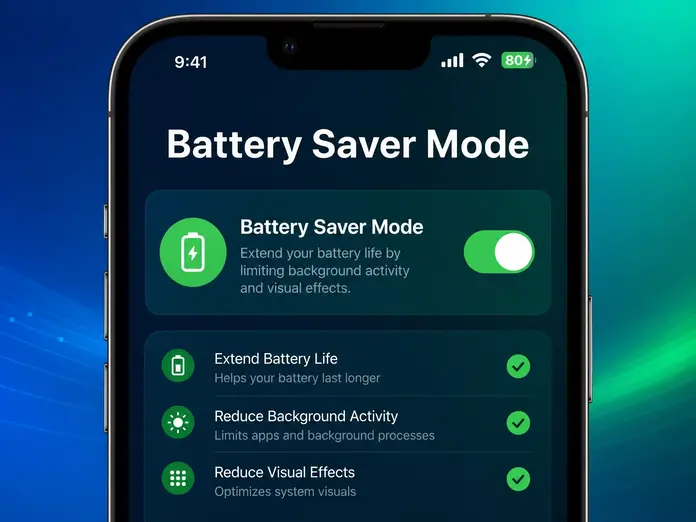
Battery saver features reduce unnecessary power usage while you play. They limit background activity, reduce system workload, and improve battery optimization. Most Android phones include these features by default. Some brands also add their own gaming and power-saving tools. Keep in mind that aggressive battery saving may lower performance on some devices. Test different options to find the best balance between smooth gameplay and longer battery life.
Android Battery Saver
Battery Saver reduces power consumption across the system. When enabled, Android limits background processes, reduces visual effects, and delays non-essential tasks. This leaves more battery available for Bus Simulator Ultimate. Battery Saver works best when your battery level drops below 30% or when you plan to play for a long time.
Benefits:
Adaptive Battery
Adaptive Battery uses on-device machine learning to understand how you use your apps. Android gives priority to apps you use often and restricts apps you rarely open. This reduces background CPU activity and helps save battery without affecting your normal gaming sessions. Unlike Battery Saver, Adaptive Battery works automatically after learning your usage habits.
Benefits:
Low Power Mode
Many Android brands offer Low Power Mode in addition to Battery Saver. Samsung, Xiaomi, OnePlus, OPPO, vivo, and other manufacturers include similar features with different names. Low Power Mode usually lowers CPU speed, limits background synchronization, and reduces system animations. These changes decrease battery consumption, but they may also reduce game performance. Use this mode when battery life matters more than maximum graphics or frame rate.
Best for:
Which Mode Should You Use?
| Feature | Battery Saving | Performance Impact | Best Use |
| Adaptive Battery | Moderate | Very Low | Keep enabled all the time |
| Android Battery Saver | High | Low to Moderate | Long gaming sessions |
| Low Power Mode | Very High | Moderate | When battery is running low |
For the best results, keep Adaptive Battery enabled every day. Turn on Battery Saver when you start a long Bus Simulator Ultimate session or when your battery level falls below 30%. Use Low Power Mode only when you need extra playtime and can accept a small drop in performance. Google recommends keeping Adaptive Battery enabled because it reduces background battery usage by limiting apps you use less often. Combined with lower graphics settings, a 60Hz refresh rate, and a lower FPS limit, these features can noticeably reduce battery drain while playing Bus Simulator Ultimate.
Close Background Apps
Background apps continue to use your phone even when you cannot see them. They consume CPU power, RAM, network data, and battery in the background. This extra workload leaves fewer resources for Bus Simulator Ultimate. Closing unnecessary apps before you start the game can reduce battery drain, lower phone temperature, and improve overall performance. Android also limits battery usage more effectively when fewer apps compete for system resources.
Social Media Apps
Apps like Facebook, Instagram, TikTok, Snapchat, and X keep syncing in the background. They check for new messages, notifications, and updates throughout the day. This constant activity increases battery consumption while you play. Before launching Bus Simulator Ultimate:
This simple step helps free RAM and reduces background CPU usage.
Streaming Apps
Music and video streaming apps also drain battery. Spotify, YouTube, Netflix, Twitch, and similar apps continue downloading data and playing media unless you close them. Streaming over mobile data increases battery usage even more because your phone processes both the game and network traffic at the same time. If you do not need background audio, close these apps before starting your gaming session.
Download Managers
Large downloads consume network bandwidth and processor resources. App updates, cloud backups, browser downloads, and file transfers continue running unless you stop them. These tasks increase battery usage and may cause lag in Bus Simulator Ultimate. Pause or finish downloads before you play, especially if you use mobile data. Bus Simulator Version History.
Quick Checklist Before Playing
Follow this checklist to improve battery optimization before launching the game:
These small changes reduce background activity and give Bus Simulator Ultimate more CPU, GPU, and RAM resources. Combined with Medium graphics, a 30 FPS or 45 FPS limit, 60Hz refresh rate, and Battery Saver mode, closing background apps can noticeably reduce battery drain and help you enjoy longer gaming sessions.
Disable Unused Features
Several phone features continue using battery even when you are focused on the game. Turning off features you do not need reduces background activity and gives Bus Simulator Ultimate more system resources. This simple habit helps reduce battery drain, lowers phone temperature, and extends your gaming session.
Turn Off GPS
GPS constantly checks your location. Bus Simulator Ultimate does not need location services for normal gameplay. Keeping GPS enabled forces your phone to communicate with satellites and process location data in the background. Disable GPS before you start playing unless another app requires it.
Benefits:
Disable NFC
NFC uses very little power on its own, but leaving it enabled serves no purpose while gaming. If you are not making contactless payments or pairing NFC devices, switch it off before launching the game. This small change removes another background service from your phone.
Turn Off Bluetooth
Bluetooth continuously searches for nearby devices when enabled. If you are not using wireless earbuds, headphones, or a game controller, turn Bluetooth off. This reduces wireless activity and saves battery during long gaming sessions. If you use Bluetooth accessories, keep Bluetooth enabled only while those devices are connected.
Pause Auto-Sync
Auto-sync updates emails, contacts, photos, cloud storage, and app data in the background. These updates consume network bandwidth, CPU power, and battery while you play. Pause auto-sync before starting Bus Simulator Ultimate. You can enable it again after your gaming session ends.
Apps that often sync automatically include:
Quick Settings to Turn Off Before Playing
| Feature | Battery Impact | Turn Off When |
| GPS | High | You do not need location services |
| Bluetooth | Moderate | No wireless accessories connected |
| NFC | Low | You are not using contactless payments |
| Auto-sync | Moderate | During long gaming sessions |
Disabling these features reduces unnecessary background activity without affecting gameplay. Pair this step with Battery Saver mode, 60Hz refresh rate, 30 FPS or 45 FPS, and Medium graphics quality to lower battery usage, reduce overheating, and enjoy longer Bus Simulator Ultimate sessions. Android also recommends disabling unused radios and limiting background synchronization to improve battery life during demanding tasks like mobile gaming.
Use Wi-Fi Instead of Mobile Data
Your internet connection affects battery life more than many players realize. If you play Bus Simulator Ultimate online, your phone constantly sends and receives data. A stable Wi-Fi connection uses less power than mobile data in most situations. It also provides a more consistent connection, which helps reduce battery consumption during gameplay.
Why Wi-Fi Saves More Battery
When you use mobile data, your phone communicates with nearby cell towers. If the signal is weak, it increases transmission power to stay connected. This extra work drains the battery faster. Wi-Fi usually requires less power because the router is much closer than a cell tower. Your phone does not need to boost its signal as often.
Better Performance During Gameplay
A stable Wi-Fi connection offers more than battery savings.
It can also:
This creates a smoother gaming experience while using less power.
Avoid Weak Mobile Signals
A weak cellular signal is one of the biggest causes of high battery usage. If you play in an area with poor coverage, your phone keeps searching for a stronger signal. This process increases CPU activity and drains the battery much faster. If Wi-Fi is unavailable, try playing where your mobile signal is strong.
Offline Play Can Save Even More Battery
If you plan to play offline and the game mode supports it, consider enabling Airplane Mode and then turning Wi-Fi back on only if needed. This stops your phone from searching for mobile networks while still allowing a Wi-Fi connection when required.
Wi-Fi vs. Mobile Data
| Connection | Battery Usage | Connection Stability | Recommended For |
| Wi-Fi | Low | High | Best overall choice |
| Strong 4G/5G Signal | Moderate | Good | Good alternative |
| Weak 4G/5G Signal | High | Low | Avoid if possible |
For the best battery life, play Bus Simulator Ultimate on a stable Wi-Fi network whenever possible. Combine this with Battery Saver, Medium graphics, a 30 FPS or 45 FPS limit, and a 60Hz refresh rate. These changes work together to reduce battery drain, lower phone heating, and extend your gaming sessions. Google also notes that poor cellular coverage increases battery consumption because phones use more power to maintain a mobile network connection. A strong Wi-Fi connection often provides a more battery-friendly option for online gaming. Best Buses to Choose in Career Mode
Turn Off Vibration
Vibration may seem like a small feature, but it uses extra battery during gameplay. Every vibration activates your phone’s vibration motor, which consumes power. Bus Simulator Ultimate can trigger vibrations during button presses, collisions, notifications, or other in-game actions. These repeated vibrations add up during long gaming sessions. If you want to reduce battery drain while playing Bus Simulator Ultimate, turning off vibration is a simple and effective step.
Why Disable Vibration?
The vibration motor requires additional power every time it activates. While a single vibration uses little battery, hundreds of vibrations during a long session increase overall battery consumption. Disabling vibration also helps reduce unnecessary background activity, allowing your phone to focus more on game performance.
When Should You Turn It Off?
Turn off vibration if you:
If you enjoy vibration effects, you can leave them enabled. The battery savings will be smaller than lowering graphics or reducing FPS, but every optimization helps during extended play.
How to Disable Vibration
You can usually disable vibration from your phone’s settings.
Android:
Some Android brands also let you disable vibration through Game Mode or Game Booster while playing.
Is It Worth Turning Off?
Vibration alone will not solve high battery usage, but it contributes to overall power consumption. When combined with Battery Saver, Medium graphics, a 30 FPS or 45 FPS limit, 60Hz refresh rate, and lower screen brightness, turning off vibration helps your phone stay cooler and extends battery life during long Bus Simulator Ultimate sessions. Think of vibration as one piece of a complete battery-saving setup. Small changes like this work together to deliver noticeably longer playtime on a single charge.
Clear Game Cache
Game cache stores temporary files that help Bus Simulator Ultimate load faster. These files include textures, images, and other game data. Over time, the cache can become large or outdated. This may cause higher storage usage, slower loading times, or minor performance issues. Clearing the cache removes these temporary files without deleting your game progress.
What Does Game Cache Do?
The cache helps the game:
After clearing the cache, the game rebuilds these files during the next launch.
When Should You Clear the Cache?
You do not need to clear the cache every day. Do it only when you notice problems such as:
If the game runs smoothly, leave the cache as it is.
Keep Bus Simulator Ultimate Updated
Game updates often include performance improvements along with new features. Developers fix bugs, improve graphics optimization, and reduce unnecessary resource usage in each release. Running the latest version of Bus Simulator Ultimate can help reduce battery drain, improve stability, and deliver smoother gameplay.
Why Updates Matter
Each update may include:
These improvements can lower power consumption, especially if an older version contains performance issues.
When Should You Update?
Update the game when:
After updating, restart your phone before playing. This helps the new version load properly and clears temporary system processes.
Update Android System
An updated Android version can improve battery efficiency and game performance. Google regularly releases updates that optimize power management, improve resource handling, and fix software bugs. If you use an older Android version, your phone may consume more power while running demanding games like Bus Simulator Ultimate.
Why Android Updates Help
A system update can provide:
These improvements help your phone run games more efficiently and may reduce unnecessary battery usage.
When Should You Update?
Check for Android updates if:
Before installing an update, charge your phone and back up important data if needed.
Avoid Charging While Playing
Charging your phone while playing Bus Simulator Ultimate may seem convenient, but it creates extra heat. The charger adds heat while the game pushes the CPU and GPU. Together, they can raise your phone’s temperature quickly. High heat affects battery life, performance, and long-term battery health.
Heat Generation
Gaming already places a heavy load on your phone. Charging at the same time adds another source of heat.
Excessive heat can:
If your phone becomes too hot, stop charging and let it cool before continuing.
Battery Health
Lithium-ion batteries last longer when they stay within a normal temperature range. Frequent charging during long gaming sessions exposes the battery to more heat. Over time, this can speed up battery wear and reduce the amount of charge the battery can hold. For better battery health, charge your phone before you start playing instead of keeping it plugged in throughout your session.
Performance Impact
High temperatures force your phone to protect its hardware. It does this by reducing CPU and GPU speed, a process called thermal throttling.
When this happens, you may notice:
Playing on battery power after a full charge often delivers more stable performance than gaming while charging.
Best Graphics Settings to Reduce Battery Drain in Bus Simulator Ultimate
The right graphics settings can extend your gaming time without making the game look poor. You do not need to switch every option to Low. A balanced setup keeps gameplay smooth while reducing battery consumption and phone heating. The table below shows the best settings for most Android phones.
| Setting | Recommended Value | Battery Impact | Performance |
| Graphics Quality | Medium | High Saving | Smooth gameplay |
| FPS Limit | 30 FPS | Very High Saving | Stable performance |
| Shadows | Low | Medium Saving | Good visual quality |
| Texture Quality | Medium | Medium Saving | Better image detail |
| Resolution | Medium | Medium Saving | Sharp enough for most screens |
| Anti-Aliasing | Off | High Saving | Minor visual quality loss |
| V-Sync | Off | Small Saving | Good performance |
Why These Settings Work
Best Overall Combination
For most players, this setup offers the best balance:
This combination reduces battery drain, limits phone overheating, and keeps Bus Simulator Ultimate running smoothly during long trips. It works well for most 6 GB and 8 GB Android phones, while lower-end devices may benefit from reducing graphics quality even further.
Best Battery Saving Settings for Low-End Phones
Not every phone handles Bus Simulator Ultimate the same way. Your RAM and hardware determine which settings deliver the best balance between battery life and smooth gameplay. Use the recommendations below as a starting point. You can make small adjustments based on your phone’s performance.
3–4 GB RAM
Phones with 3 GB or 4 GB RAM have limited resources. High graphics and background apps can quickly cause battery drain, overheating, and lag.
Recommended Settings
| Setting | Recommended Value |
| Graphics Quality | Low |
| FPS Limit | 30 FPS |
| Refresh Rate | 60Hz |
| Shadows | Off or Low |
| Texture Quality | Low |
| Resolution | Low or Medium |
| Anti-Aliasing | Off |
| V-Sync | Off |
| Screen Brightness | 40% |
| Battery Saver | On |
Extra Tips
6 GB RAM
A 6 GB RAM phone offers a much better gaming experience. You can enjoy smoother gameplay while still saving battery.
Recommended Settings
| Setting | Recommended Value |
| Graphics Quality | Medium |
| FPS Limit | 30 FPS |
| Refresh Rate | 60Hz |
| Shadows | Low |
| Texture Quality | Medium |
| Resolution | Medium |
| Anti-Aliasing | Off |
| V-Sync | Off |
| Screen Brightness | 50% |
| Battery Saver | On for long sessions |
Extra Tips
8 GB RAM
An 8 GB RAM device provides enough memory for stable gameplay. You can increase visual quality without causing excessive battery drain.
Recommended Settings
| Setting | Recommended Value |
| Graphics Quality | Medium |
| FPS Limit | 45 FPS |
| Refresh Rate | 60Hz |
| Shadows | Medium |
| Texture Quality | Medium |
| Resolution | Medium |
| Anti-Aliasing | Off |
| V-Sync | Off |
| Screen Brightness | 50%–60% |
| Battery Saver | Optional |
Extra Tips
12 GB+ RAM
Phones with 12 GB RAM or more can handle higher graphics settings with ease. However, more RAM does not prevent battery drain. The display, CPU, and GPU still consume significant power.
Recommended Settings
| Setting | Recommended Value |
| Graphics Quality | High |
| FPS Limit | 45 FPS |
| Refresh Rate | 60Hz |
| Shadows | Medium |
| Texture Quality | High |
| Resolution | High |
| Anti-Aliasing | Off |
| V-Sync | Off |
| Screen Brightness | 50% |
| Battery Saver | Optional |
Extra Tips
Quick Comparison
| RAM | Graphics | FPS | Best For |
| 3–4 GB | Low | 30 FPS | Maximum battery life |
| 6 GB | Medium | 30 FPS | Balanced gameplay |
| 8 GB | Medium | 45 FPS | Better visuals with good battery life |
| 12 GB+ | High | 45 FPS | Premium experience with controlled battery usage |
These settings help reduce battery drain, limit phone heating, and keep Bus Simulator Ultimate running smoothly across different Android devices. Adjust them if your phone still gets hot or your battery drops faster than expected.
Best Battery Saving Settings for Mid-Range Phones
Mid-range phones can run Bus Simulator Ultimate smoothly without draining the battery too quickly. The right settings reduce heat, improve battery life, and maintain stable performance.
Snapdragon 7 Series
Processors like Snapdragon 7 Gen 1, 7+ Gen 2, and 7 Gen 3 handle the game well on balanced settings.
Dimensity 700–8000 Series
MediaTek Dimensity 700 to 8000 series chips also deliver smooth gameplay with medium graphics and a lower FPS limit.
Exynos Mid-Range Chips
Phones with Exynos 1380, Exynos 1480, and similar processors perform best with balanced graphics settings. Lowering the FPS helps control heat during longer sessions.
Recommended Configuration
| Setting | Recommended Value |
| Graphics Quality | Medium |
| FPS Limit | 45 FPS (30 FPS for maximum battery life) |
| Refresh Rate | 60Hz |
| Shadows | Low |
| Texture Quality | Medium |
| Resolution | Medium |
| Anti-Aliasing | Off |
| V-Sync | Off |
| Screen Brightness | 40%–60% |
| Battery Saver | On for long gaming sessions |
This setup offers the best balance between visual quality, battery life, and stable gameplay for most mid-range Android phones.
Best Battery Saving Settings for Flagship Phones
Flagship phones deliver excellent performance, but high settings still increase battery usage. You can enjoy great visuals without draining the battery by using balanced settings instead of pushing everything to the maximum.
Snapdragon 8 Series
Phones with Snapdragon 8 Gen 2, 8 Gen 3, and 8 Elite can run the game smoothly on high settings. For longer gaming sessions, limit the FPS and use a 60Hz refresh rate.
Apple A-Series
Devices powered by A17 Pro, A18, and newer Apple chips offer strong performance and good power efficiency. Lower screen brightness and avoid maximum frame rates to extend battery life.
Dimensity 9000/9400 Series
MediaTek Dimensity 9000, 9200, 9300, and 9400 processors handle Bus Simulator Ultimate with ease. Medium to High graphics provide a good balance between visuals and battery life.
Recommended Configuration
| Setting | Recommended Value |
| Graphics Quality | High |
| FPS Limit | 45 FPS |
| Refresh Rate | 60Hz |
| Shadows | Medium |
| Texture Quality | High |
| Resolution | High |
| Anti-Aliasing | Off |
| V-Sync | Off |
| Screen Brightness | 40%–60% |
| Battery Saver | Optional |
For most flagship phones, High graphics, 45 FPS, and a 60Hz refresh rate deliver smooth gameplay while keeping battery drain and phone heating under control. Use Ultra graphics only for short gaming sessions if visual quality matters more than battery life.
How Much Battery Does Bus Simulator Ultimate Use?
Battery usage depends on your graphics settings, FPS, and phone hardware. Higher graphics and frame rates increase CPU and GPU usage, which leads to faster battery drain. The table below shows estimated battery usage during gameplay.
| Graphics Quality | FPS | Battery Used (30 Minutes) | Battery Used (1 Hour) |
| Low | 30 FPS | 8–12% | 16–24% |
| Medium | 30 FPS | 12–16% | 24–32% |
| High | 60 FPS | 18–24% | 36–48% |
| Ultra | 60 FPS | 25–35% | 50–70% |
These figures are estimates. Your results may differ based on:
If you want longer gaming sessions, use Medium graphics, 30 FPS or 45 FPS, 60Hz refresh rate, and 40%–60% screen brightness. This combination offers a good balance between visual quality and battery life.
How to Stop Phone Heating While Playing Bus Simulator Ultimate
Phone heating often goes hand in hand with high battery usage. Lower temperatures help your phone maintain stable performance and extend battery life. These simple tips can reduce heat during long Bus Simulator Ultimate sessions.
Remove Thick Phone Cases
Thick cases trap heat inside the phone. Remove them before long gaming sessions so heat can escape more easily.
Play in a Cooler Environment
Room temperature affects your phone’s temperature. Play in a cool, well-ventilated area instead of a hot room.
Lower Graphics Settings
High graphics increase GPU workload and generate more heat. Switching to Medium or Low graphics helps keep your phone cooler while reducing battery drain.
Reduce FPS
A 30 FPS or 45 FPS limit reduces CPU and GPU usage. This lowers heat and extends your gaming time.
Close Background Apps
Background apps continue using system resources while you play. Close social media, streaming, and other unnecessary apps to reduce CPU load and improve cooling.
Take Breaks During Long Sessions
Playing for hours without a break increases phone temperature. Let your phone rest for a few minutes after long sessions to cool down naturally.
Avoid Direct Sunlight
Do not play under direct sunlight or leave your phone in a hot place. External heat raises the device temperature quickly and can trigger thermal throttling.
Battery Optimization Features You Should Enable
Modern Android phones include built-in tools that help reduce battery usage during gaming. Enable these features when needed to extend your Bus Simulator Ultimate playtime.
Adaptive Battery
When to use: Keep it enabled all the time. Adaptive Battery learns your app usage and limits battery consumption from apps you rarely use. It reduces background activity without affecting normal gameplay.
Battery Optimization
When to use: Leave it enabled for most apps. Battery Optimization restricts unnecessary background processes and helps improve overall battery life. Avoid disabling it unless an app specifically requires unrestricted access.
Game Booster
When to use: Enable before starting the game. Many phones include a Game Booster or Game Mode. It closes background tasks, blocks notifications, and allocates more resources to the game. This improves performance while reducing unnecessary battery usage.
Performance Mode
When to use: Turn it on only if you need higher performance. Performance Mode increases CPU and GPU speed for smoother gameplay. It also consumes more battery, so use it for short sessions or when you need extra FPS.
Power Saving Mode
When to use: Enable during long gaming sessions or when your battery is low. Power Saving Mode reduces background activity and limits system power usage. You may notice a small drop in performance, but your battery will last longer.
Quick Comparison
| Feature | Best Time to Use | Main Benefit |
| Adaptive Battery | Always | Reduces background battery usage |
| Battery Optimization | Always | Limits unnecessary background activity |
| Game Booster | Before gaming | Improves performance and reduces distractions |
| Performance Mode | High-performance gaming | Increases FPS and responsiveness |
| Power Saving Mode | Low battery or long sessions | Extends battery life |
For most players, the best combination is Adaptive Battery, Battery Optimization, and Game Booster. Turn on Power Saving Mode when battery life matters more than maximum performance.
Common Mistakes That Increase Battery Drain
Many players unknowingly use settings that drain the battery faster. Avoid these common mistakes to enjoy longer Bus Simulator Ultimate sessions.
Playing at Maximum Brightness
A bright display consumes more power than necessary. Keep screen brightness around 40%–60% for a better balance.
Keeping 120Hz Enabled
A 120Hz refresh rate makes animations smoother but increases battery usage. Switch to 60Hz if you want longer playtime.
Running Multiple Apps
Social media, streaming apps, and downloads continue using CPU, RAM, and battery in the background. Close them before launching the game.
Charging While Gaming
Charging and gaming at the same time generate extra heat. This can reduce performance and affect long-term battery health.
Ignoring Software Updates
Outdated game or Android versions may contain bugs that increase battery usage. Install updates to get the latest performance and battery optimizations.
Using Maximum Graphics on Low-End Phones
High or Ultra graphics force low-end devices to work harder. This increases battery drain, overheating, and lag. Use Low or Medium graphics instead.
Poor Ventilation
Playing in a hot room or using a thick phone case traps heat. Keep your phone in a cool, well-ventilated place during long gaming sessions.
Weak Network Signal
A weak mobile signal forces your phone to use more power to stay connected. Play on a stable Wi-Fi network whenever possible.
Troubleshooting High Battery Usage in Bus Simulator Ultimate
If Bus Simulator Ultimate suddenly starts draining your battery, the problem is often easy to fix. Follow the steps below based on the issue you are facing.
Battery Drains After a Game Update
New updates may introduce temporary bugs or increase resource usage.
Try these steps:
Battery Drains After an Android Update
Android updates can change battery management. Your phone may need some time to optimize apps.
Try these steps:
Game Uses Too Much Battery in the Background
The game should not continue using a large amount of battery after you stop playing.
Try these steps:
Phone Gets Hot Within Minutes
Fast heating usually means your phone is under a heavy workload.
Try these steps:
Battery Drains Even on Low Graphics
If battery usage remains high on low settings, another factor is likely causing the problem.
Try these steps:
Bus Simulator Ultimate vs Other Mobile Games Battery Usage
Different mobile simulation games place different demands on your phone. Bus Simulator.Ultimate uses more battery than many casual games because it features detailed graphics, AI traffic, weather effects, and larger maps. The table below provides a general comparison.
| Game | Battery Usage | Heat | Recommended Graphics |
| Bus Simulator Ultimate | High | Medium–High | Medium |
| Bus Simulator Indonesia (BUSSID) | Medium | Medium | High |
| Truck Simulator Ultimate | High | High | Medium |
| Car Parking Multiplayer | Medium | Low | High |
Quick Comparison
For most players, Medium graphics, 30 FPS or 45 FPS, and a 60Hz refresh rate provide the best balance between battery life and smooth gameplay in Bus Simulator Ultimate.
Tips to Play Bus Simulator Ultimate Longer on One Charge
A few simple habits can noticeably extend your gaming time. These tips reduce battery usage without affecting the core gameplay experience.
Lower Screen Brightness
Keep brightness between 40% and 60%. Your display is one of the biggest battery consumers.
Use Headphones Instead of Speakers
Wired or wireless headphones usually consume less power than playing audio through the phone’s speakers at high volume.
Lock the FPS
Set the game to 30 FPS or 45 FPS. A lower FPS reduces CPU and GPU workload, which helps save battery.
Disable Unused Connections
Turn off Bluetooth, GPS, NFC, and Auto-sync if you do not need them during gameplay.
Play on Wi-Fi
A stable Wi-Fi connection usually uses less battery than mobile data, especially in areas with weak cellular coverage.
Enable Battery Saver
Turn on Battery Saver before long gaming sessions or when your battery level is low.
Keep Storage Free
Maintain some free storage on your phone. A nearly full storage can affect overall system performance.
Restart Your Phone Regularly
Restart your phone every few days to clear temporary processes and free system resources before gaming.
Frequently Asked Questions
How can I reduce battery drain while playing Bus Simulator Ultimate?
Lower the graphics settings, limit the FPS to 30 or 45, reduce screen brightness, and enable Battery Saver.
Why is my battery draining so fast in Bus Simulator Ultimate?
High graphics, maximum brightness, 120Hz refresh rate, background apps, and phone overheating are the most common causes.
Does lowering graphics save battery in Bus Simulator Ultimate?
Yes. Lower graphics reduce GPU workload, which lowers battery consumption and phone temperature.
What is the best FPS for battery life?
30 FPS offers the best battery savings, while 45 FPS provides a good balance between smooth gameplay and battery life.
Does Battery Saver affect gameplay?
Yes. It may slightly reduce performance, but it helps extend battery life during long gaming sessions.
Does Game Booster save battery?
Game Booster mainly improves performance by reducing background activity, which can also lower unnecessary battery usage.
Can overheating increase battery drain?
Yes. A hot phone consumes more power and may trigger thermal throttling, reducing both performance and battery life.
Final Verdict
Reducing battery drain in Bus Simulator Ultimate does not require major changes. Small adjustments like Medium graphics, 30 FPS or 45 FPS, 60Hz refresh rate, 40%–60% screen brightness, and Battery Saver mode can noticeably extend your gaming sessions while keeping performance smooth. For low-end phones, use Low graphics and 30 FPS to reduce heat and battery usage. Mid-range phones perform best with Medium graphics and 45 FPS. If you own a flagship device, High graphics with 45 FPS offers an excellent balance between visual quality and battery life without pushing the hardware too hard.
Every phone performs differently. Your chipset, battery health, Android version, screen brightness, and ambient temperature all affect battery consumption. Test different settings on your own device and choose the combination that delivers the best mix of smooth gameplay, lower temperatures, and longer battery life.