
Is My Progress Saved After Updating Bus Simulator Ultimate?

Yes. Your progress is usually saved after updating Bus Simulator Ultimate if your game data stays intact. A normal update does not delete your level, buses, money, or player profile. Problems usually happen when save data becomes damaged or the update is installed incorrectly. Your progress depends on several factors. These include cloud save, account sync, local save, and the way you update the game. Players using a linked account often keep their progress more safely.
Players relying only on local storage should create a backup before updating. This guide explains how Bus Simulator Ultimate stores your progress and what happens during an update. You will learn when progress stays safe, when data loss can happen, and how to avoid it. We will also cover backup methods, progress recovery, common update mistakes, and the safest way to install the latest version without losing your game data.
Does Updating Bus Simulator Ultimate Delete Your Progress?
Direct Answer
No. Updating Bus Simulator Ultimate does not usually delete your progress. Your game progress stays safe if the update installs over the existing version and your save file remains intact. This includes your level, buses, routes, money, and other player data. A normal app update replaces the old game files with newer ones. It does not remove your local save or app progress. If you update through the official store without deleting the game, your progress usually remains available.
An official version update follows the same process. As long as you keep the same package and do not clear app data, your progress should stay unchanged. Players using account sync or cloud save have extra protection if they switch devices later. A MOD APK update works differently. Some MOD versions support existing save files, while others use a different package or change game data. Installing an incompatible MOD can cause data loss, missing progress, or save file errors.
Your progress usually stays safe when you:
Your progress may disappear if you:
Key Points
How Bus Simulator Ultimate Saves Your Progress
Bus Simulator Ultimate stores your progress in different ways. The method depends on how you play and how your account is set up. Your game progress may be stored through cloud save, local save, or both. Understanding these options helps you protect your data before every update.
Cloud Save

Cloud save stores your progress online instead of keeping everything only on your device. This makes it easier to keep your progress safe if you update the game or move to another phone. When you sign in with a linked account, the game can use account sync to connect your player profile with cloud storage. During cloud sync, your latest progress uploads to your account and becomes available when you sign in again.
Cloud save offers several benefits:
Cloud sync works best with a stable internet connection. Before updating, open the game and allow your latest progress to sync completely.
Local Save
A local save keeps your progress inside your device’s storage. This includes your save files, player data, and other game information needed to continue where you left off.
Local storage usually keeps:
This method also supports offline progress because your data stays on the device. However, local data remains vulnerable if you uninstall the game, clear app data, or replace the save files during an update. Creating a backup before installing a new version adds an extra layer of protection.
Auto-Save vs Manual Save
Bus Simulator Ultimate mainly relies on an auto-save system. The game saves your progress while you play and after important activities. This reduces the chance of losing recent progress if you close the game normally.
Common save checkpoints include:
Some versions or tools may also allow a manual save by backing up the game’s save files. This creates a copy of your current progress before installing an update. Before updating, let the game finish its latest progress update and close it properly. This helps ensure your newest progress is written to your save data before the installation begins.
What Happens to Your Progress During an Update?
When you update Bus Simulator Ultimate, the game replaces old files with newer ones. Your save data usually stays untouched because it is stored separately from the installation files. The result depends on where your progress is stored and how you install the update. Here is what happens in different update situations.
Updating from Google Play
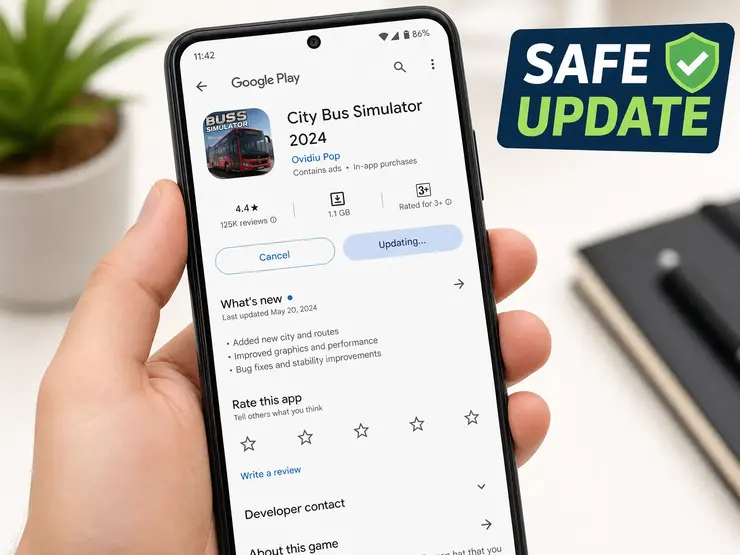
Updating through Google Play is the safest option. The store downloads the latest version and installs it over the existing app. Your game progress, settings, and player profile usually remain available after the update. If you use account sync or cloud save, your progress has another layer of protection. Even if you sign in on another compatible device later, your synced data can still be available.
To reduce the risk of problems:
Updating a MOD APK
Updating a MOD APK needs extra care. Different MOD releases may use different files or settings. Some versions work with your existing save file, while others may not.
Before installing a new MOD version:
If the new MOD uses different game data or a different package, your progress may not load correctly.
Installing a New Version Over the Existing One
Installing the latest version over the current installation is the recommended method. The installer updates the game files while leaving your local data and player profile in place.
This method usually keeps:
Do not clear app data before or after the update. Doing so can remove your local progress.
Updating After Skipping Several Versions
Many players skip updates and install a much newer version later. In most cases, your progress still remains available if your save data is compatible with the new version. Older saves may need extra time to load because the game must apply changes from previous updates. Some major updates also change game systems or add new content. These changes can affect compatibility with older MOD versions.
Before jumping across multiple versions:
Taking these steps lowers the chance of progress loss and helps your update finish without unexpected issues.
When Can You Lose Progress?
Most updates do not erase your progress. Data loss usually happens because of changes made before or after the update. Knowing these situations helps you protect your save data and avoid unexpected problems.
Reinstalling the Game
Reinstalling is different from updating. Removing the game can also remove its local save from your device. If your progress exists only in local storage, uninstalling the game may erase:
Always confirm that your progress is backed up or synced before reinstalling the game.
Clearing App Data
Many players clear app data to fix performance issues. This action resets the game to its default state. Clearing app data can remove:
Once local data is deleted, recovery becomes much harder without a backup or cloud sync.
Using a Guest Account
A guest account stores progress only on the current device in many cases. It offers little protection if something goes wrong. You may lose progress if you:
Using a linked account provides better protection and makes progress recovery easier.
Installing an Incompatible MOD
Not every MOD APK supports the same save file format. Some versions change game files or use different package names. This can lead to:
Check compatibility before installing any new MOD version. Create a backup if you plan to switch between different releases.
Switching Devices Without Sync
Changing phones does not automatically transfer your progress. Without account sync or cloud save, your new device cannot access your existing player data. Your progress remains on the old device unless you transfer or restore it manually. Before switching devices:
These steps make cross-device sync much smoother.
Corrupted Save Files
A damaged save file can stop the game from loading your progress. This may happen if the game closes during saving, storage becomes damaged, or incompatible files replace your existing data. Common signs include:
Keeping regular backups reduces the impact of corrupted save files and gives you a better chance of restoring your progress.
How to Update Bus Simulator Ultimate Without Losing Progress
Follow these steps before installing the latest version. They reduce the risk of data loss and help keep your game progress safe.
Step 1: Verify Account Sync
Check that your linked account is connected before updating. If the game supports cloud save, let it finish syncing your latest progress.
Before moving on:
This step helps protect your progress if you need to restore it later.
Step 2: Create a Backup
A backup gives you another copy of your save data. It can save hours of progress if something goes wrong during the update. If you use local save, create a copy of your game data before installing the new version. If you use cloud storage, confirm your latest progress has already synced. A recent backup offers the best protection against unexpected problems.
Step 3: Close the Game Properly
Do not update while the game is still running. Finish your current route and return to the main menu if possible. Give the game a few seconds to complete its final auto-save before closing it. This helps your latest progress reach the save file.
Step 4: Install the Update Correctly
Install the update over your existing game whenever possible. This method usually keeps your local data and player profile. Keep these points in mind:
Following these steps lowers the chance of compatibility problems.
Step 5: Open and Verify Your Save
Launch the game after the installation finishes. Check that your progress has loaded correctly before starting a new route. Verify your:
If anything looks missing, stop playing and check your account sync or restore your backup before creating new progress. This prevents your previous save from being overwritten.
How to Back Up Your Progress Before Updating
Creating a backup is the safest way to protect your game progress before installing a new update. If an update fails or your save data does not load, a backup can help you restore your progress quickly. You can use several methods depending on how your game stores data.
Cloud Backup
A cloud backup stores your progress online through your linked account. This method protects your player profile even if you replace your phone or reinstall the game.
Before updating:
Cloud backups work well for players who regularly switch between devices or want extra protection against data loss.
Local Backup
A local backup saves a copy of your game data on your device. This method works even if you play offline. A local backup can protect:
Keep the backup in a safe location. Do not store your only copy in the same folder as the game.
Copying Save Files
Some players prefer copying their save files before updating. This creates a separate copy that you can restore if needed. Before copying your files:
Do not edit the copied files. Changing them may prevent the game from reading your progress correctly.
Android Backup Options
Android offers additional ways to protect your app data before updating. You can improve data safety by:
A recent backup gives you the best chance to restore progress if something unexpected happens during the update process.
What to Do If Your Progress Is Missing After an Update
Missing progress does not always mean your save data is gone. In many cases, the game fails to load the correct player profile or sync your latest data. Try these troubleshooting steps before starting a new game.
Restart the Game
Close Bus Simulator Ultimate completely and open it again. A simple restart can fix temporary loading issues after an update. After restarting:
Do not create a new profile yet. It may overwrite your existing progress.
Check Account Login
Many progress issues happen because players sign in with the wrong account. Verify that you are using the same linked account you used before the update. If the game supports account sync, wait a few moments for your data to load.
Also check that:
Restore Cloud Save
If your game uses cloud save, try restoring your latest synced progress. Open the game and allow cloud sync to finish. If your previous data is available, the game should load your saved player profile automatically. Do not uninstall the game while cloud sync is still in progress.
Restore Local Backup
If you created a local backup before updating, restore your saved files. Use the backup you made before installing the new version. Older backups may not include your latest progress. After restoring the files:
Reinstall Correctly
If the update installed incorrectly, reinstall the same version carefully. Before reinstalling:
If you use a MOD APK, make sure the new version supports your existing save data. An incompatible MOD can prevent your progress from loading. Bus Simulator Version History
Contact Support
If none of these steps work, contact the game’s support team.
Provide useful details, including:
Clear information helps the support team identify the problem faster and improves the chances of recovering your progress. New Buses Added in the Latest Version
Official Version vs MOD APK Updates
Both the official version and a MOD APK let you enjoy Bus Simulator Ultimate, but they handle updates differently. The official version follows a standard update process and usually offers better compatibility with your existing save data. A MOD APK may include extra features, but update behavior depends on how the MOD was built. Before installing any update, make sure it supports your current game version. A compatible update gives you a better chance of keeping your game progress and avoiding save file problems.
| Feature | Official Version | MOD APK |
| Progress safety | Usually keeps progress after a normal update. | Depends on the MOD version and save compatibility. |
| Cloud save | Often works with supported account sync features. | May not support cloud save or account sync. |
| Compatibility | Designed for official game updates. | Can vary between different MOD releases. |
| Update process | Updates directly through the app store without replacing user data in most cases. | Usually requires downloading and installing the latest APK manually. |
| Risk of data loss | Low when updating correctly without uninstalling. | Higher if the MOD uses a different package or incompatible save format. |
| Recovery options | Cloud sync and local backups can help restore progress. | Recovery usually depends on local backups and MOD compatibility. |
Choose the update method that matches your needs. If you use a MOD APK, always create a backup before installing a new version. A few extra minutes can save hours of gameplay and reduce the chance of losing your progress.
Common Update Mistakes That Cause Progress Loss
Most players lose progress because of simple mistakes, not because of the update itself. Avoiding these errors greatly improves the safety of your save data and game progress.
Uninstalling the Game Before Updating
Many players remove the game before installing the latest version. This is one of the biggest causes of data loss. If your progress exists only in local storage, uninstalling the game may delete your save files.
Instead:
Forgetting Account Sync
Updating without checking account sync can leave your latest progress unsaved. If your recent gameplay has not synced, the game may load an older version of your player profile after the update.
Before updating:
This simple step helps protect your latest progress.
Installing the Wrong MOD
Not every MOD APK supports the same game version or save file format. Installing the wrong MOD can cause:
Always download a MOD that matches your current version and supports your existing save data.
Clearing Device Storage
Some players clear app storage to fix crashes or free space. This action can erase local data stored by the game.
Avoid clearing:
If you must clear storage, create a backup first.
Using Incompatible Versions
Jumping between incompatible versions can create update compatibility problems. This often happens when you:
Check version compatibility before updating. A few minutes of preparation can prevent hours of lost gameplay.
Ignoring Backups
Skipping a backup is a risk many players regret. A backup gives you a way to recover your progress if something goes wrong during the update. Before every major update:
These small habits protect your progress and make progress recovery much easier if an unexpected problem occurs.
Best Practices to Keep Your Progress Safe
A few simple habits can protect your game progress for the long term. Follow these practices before every update to reduce the risk of data loss.
Create Regular Backups
Do not wait for a major update to back up your progress. Create a fresh backup after reaching an important milestone. Bus Simulator
Consider creating a backup after you:
A recent backup makes progress recovery much easier.
Use a Linked Account
A linked account adds another layer of protection. It allows account sync and supports cloud save when available.
Before playing on another device:
This also helps with cross-device sync.
Keep a Stable Internet Connection
A stable internet connection helps the game complete cloud sync without interruptions. Avoid updating while using an unreliable network. An interrupted sync may leave your latest progress unavailable. If possible, wait until the game finishes syncing before closing it.
Follow a Safe Update Process
Update the game carefully every time. Use this checklist:
Skipping these steps increases the chance of progress problems.
Check Version Compatibility
Always verify that the new version works with your current save data. If you use a MOD APK, download a version that supports your existing game files. Installing an incompatible version can prevent your progress from loading. Never switch between unrelated versions without checking compatibility first.
Keep a Backup Schedule
A backup is most useful when it stays up to date. A simple schedule can protect months of gameplay:
Making backups part of your routine reduces stress and helps you recover quickly if an update does not go as planned.
Frequently Asked Questions
Is my progress saved after updating Bus Simulator Ultimate?
Yes. Your progress is usually saved after updating Bus Simulator Ultimate. A normal update keeps your level, buses, money, and player profile if your save data stays intact.
Does updating Bus Simulator Ultimate delete progress?
No. Updating the game does not normally delete progress. Problems usually happen after uninstalling the game, clearing app data, or installing an incompatible version.
Will I lose my buses after updating?
No. Your owned buses should remain available after a successful update. If your progress does not load, check your account sync or restore your backup.
Is progress safe in the MOD APK version?
It depends on the MOD version. Some MOD APKs support existing save files, while others do not. Always back up your progress before installing a new MOD.
How do I back up my progress?
You can protect your progress by using cloud save if available or creating a copy of your local save before updating. A recent backup gives you the best chance to restore your data if something goes wrong.
Can I transfer progress to another phone?
Yes, if your progress is connected to a linked account or supported by cloud sync. If you use only local storage, back up your save data before changing devices.
What should I do if my save file disappears?
Do not start a new game immediately. Restart the game, verify your account login, check cloud sync, and restore your latest backup if you have one.
Does clearing cache delete game progress?
In most cases, clearing the app cache does not remove your game progress because it deletes temporary files. However, clearing app data is different and can erase your local save.
Does reinstalling remove progress?
It can. Reinstalling may remove locally stored progress if you do not have a backup or cloud sync. Create a backup before uninstalling the game.
Can I recover lost progress after updating?
Yes, in many cases. You can restore progress through cloud save, a local backup, or your linked account if your data was backed up before the update.
Final Thoughts
Updating Bus Simulator Ultimate usually keeps your progress safe when you follow the correct steps. Most players keep their level, buses, money, and career progress by updating over the existing version and protecting their save data. Before every update, create a backup and confirm your account sync has finished. If cloud save is available, keep it enabled to add another layer of protection. These simple habits take only a few minutes but can save hours of gameplay. A little preparation before each update gives you the best chance to enjoy the latest version without losing your progress.