Bus Simulator Ultimate Controls Guide: Keyboard, Mobile, Controller & Best Settings
Learning Bus Simulator Ultimate controls makes every drive smoother and more enjoyable. You can handle traffic, sharp turns, and parking with better accuracy. Knowing each control also helps you avoid mistakes and complete routes more efficiently. This guide covers the controls for Android, iOS, PC keyboards, and supported controllers. It explains what every button does and how each control affects your driving experience. You’ll also learn how to customize the control layout, adjust steering sensitivity, and choose settings that fit your playstyle. Along the way, you’ll find practical driving tips to improve steering, braking, parking, and passenger management.
What Are Bus Simulator Ultimate Controls?
Bus Simulator Ultimate controls let you operate every part of your bus during gameplay. They help you steer, accelerate, brake, park, and interact with passengers safely. Every control supports a smoother and more realistic driving experience. The control system combines bus driving controls with essential gameplay functions. You use them to follow traffic rules, complete routes, and keep passengers satisfied. Good control improves accuracy and reduces driving mistakes. Driving controls focus on moving and handling the bus. These include steering, acceleration, braking, gear shifting, handbrake, lights, indicators, wipers, cameras, and door controls. Each feature plays an important role in realistic bus driving. Management features work differently from driving controls.
They help you accept routes, manage your company, refuel buses, hire drivers, and monitor finances. These options support business growth instead of vehicle handling. Bus Simulator Ultimate offers several control methods to match different devices and playstyles. Mobile players can choose touch buttons, tilt steering, or a virtual steering wheel. PC players use keyboard controls through supported emulators. Some devices also support Bluetooth controllers and gamepads for added comfort. Learning these control options helps you enjoy smoother bus simulator gameplay and master the game’s driving mechanics with confidence.
Bus Simulator Ultimate Mobile Controls Explained
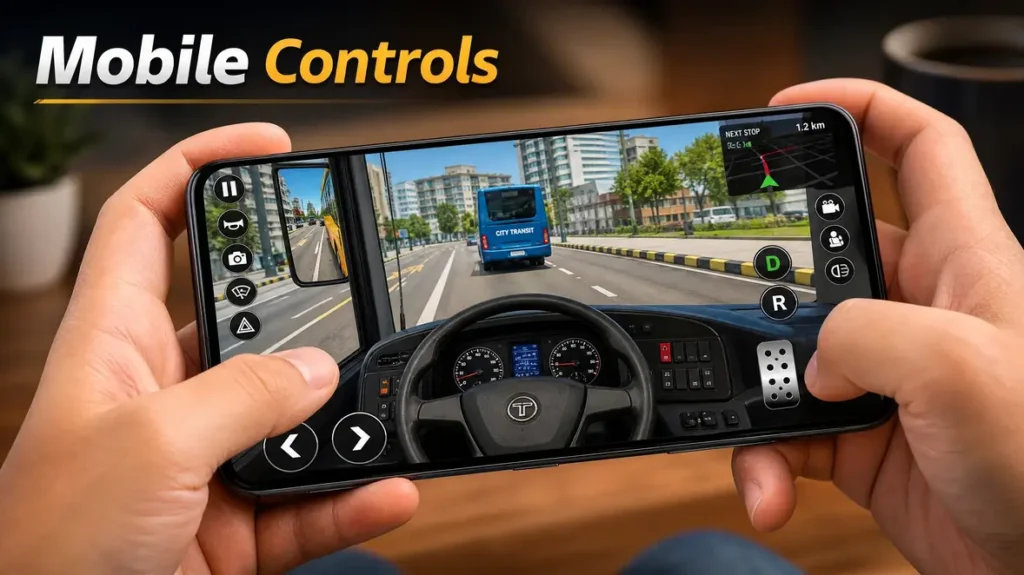
Mobile controls give you full control of the bus through simple on-screen buttons. You can customize several options to match your driving style and comfort.
Steering Controls
Steering controls help you keep the bus stable on every route. Bus Simulator Ultimate offers three steering methods for mobile players.
Steering Wheel
The virtual steering wheel gives the most realistic driving experience. It allows smooth turns and better control on narrow roads.
Tilt Steering
Tilt steering uses your phone’s motion sensor to control the bus. Tilting your device left or right changes the steering direction.
Arrow Buttons
Arrow buttons provide simple left and right steering controls. New players often find this option easier during their first trips.
Which Steering Method Is Easiest?
Arrow buttons suit beginners because they are easy to learn. The steering wheel offers better precision after some practice. Tilt steering works well if you enjoy motion-based controls.
Accelerator and Brake Controls
The accelerator pedal moves the bus forward with steady speed. Press it gently for smoother starts and better fuel efficiency. The brake pedal slows or stops the bus safely. Brake early before intersections and bus stops to avoid sudden movements. Smooth acceleration and controlled braking improve passenger comfort and reduce driving bus simulator crash fix errors.
Gear Controls
Gear controls determine how your bus moves in different situations.
You can choose manual or automatic transmission in the settings. Automatic transmission suits beginners. Manual transmission gives experienced players more control over driving.
Handbrake
The handbrake keeps the bus from rolling after you stop. Use it before opening the passenger doors or leaving the driver’s seat. Always apply the handbrake when parking on slopes or waiting for passengers.
Camera Controls
Camera controls improve visibility during different driving situations.
Interior View
Shows the dashboard and driver’s seat for a realistic driving experience.
Exterior View
Displays the entire bus and nearby traffic. This view helps during turns and parking.
Driver View
Focuses on the road from the driver’s perspective. It improves immersion and road awareness.
Free Camera
Lets you rotate the camera around the bus. Use it to check obstacles before moving.
Door Controls
Door controls manage passenger boarding at bus stops. Open the doors after stopping completely. Close them before moving to prevent delays and keep the route on schedule.
Lights and Wipers
Lighting controls improve visibility during night driving and poor weather.
Horn
The horn warns nearby vehicles and pedestrians about your presence. Use it when another driver blocks your path or ignores traffic rules. Avoid unnecessary horn use because it does not improve your driving score.
Bus Simulator Ultimate Keyboard Controls (PC)
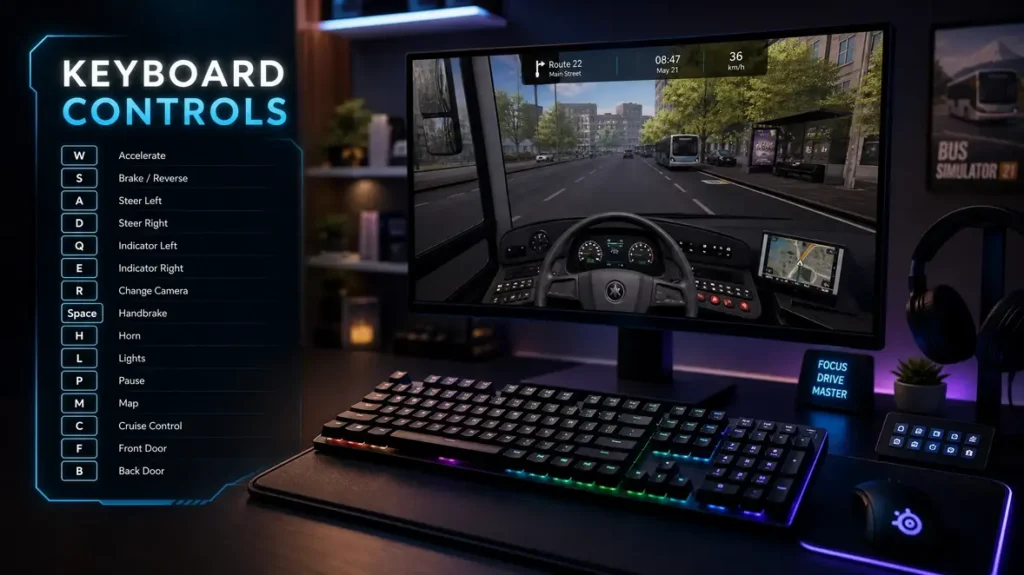
Bus Simulator Ultimate runs on PC through Android emulators. Keyboard controls depend on the emulator and your custom key mapping. You can edit these shortcuts anytime from the emulator settings.
| Action | Common Keyboard Key* |
| Accelerate | W or Up Arrow |
| Brake | S or Down Arrow |
| Steer Left | A or Left Arrow |
| Steer Right | D or Right Arrow |
| Reverse | R or Shift |
| Handbrake | Spacebar |
| Horn | H |
| Camera Change | C |
| Indicators | Q / E |
| Headlights | L |
| Wipers | K |
| Doors | O |
| Pause | Esc |
These are common keyboard mappings. Your emulator may use different keys.
Keyboard Shortcuts
Keyboard shortcuts make driving faster and more comfortable. You can reach important controls without touching the mouse. Many players customize shortcuts to match their gaming habits.
Emulator Mapping
Android emulators let you map keyboard keys to on-screen buttons. Open the key mapping tool and assign each action to your preferred key. Test every shortcut before starting a long route.
BlueStacks Controls
BlueStacks includes a built-in Key Controls Editor. You can drag keyboard buttons onto the game screen and save a custom layout. This setup works well for steering, braking, camera controls, and gear shifting.
LDPlayer Controls
LDPlayer offers flexible keyboard mapping for Bus Simulator Ultimate. You can adjust key positions, change shortcuts, and save multiple control profiles. This feature helps players switch between casual and realistic driving setups.
GameLoop Controls
GameLoop also supports custom keyboard mapping. Assign keys for steering, lights, indicators, doors, and other driving controls. Fine-tune your layout until every action feels natural during gameplay.
Controller and Gamepad Support
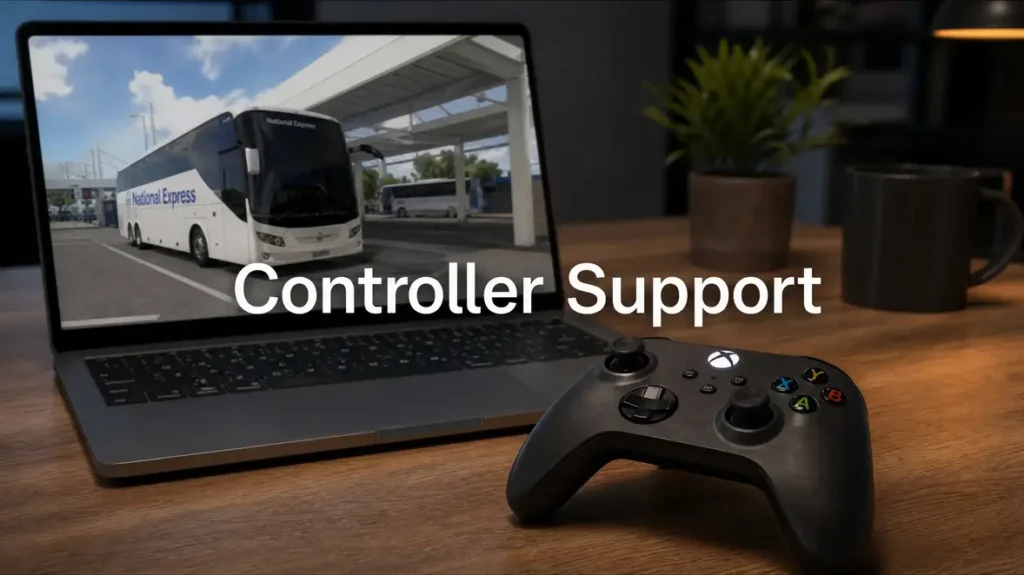
Bus Simulator Ultimate also works with supported controllers on many Android devices and PC emulators. A controller gives smoother steering and better control during long routes. Compatibility depends on your device and the emulator you use.
Bluetooth Controller Support
Many Bluetooth controllers connect quickly through your device settings. After pairing the controller, launch the game and test every button. Some devices detect controllers automatically, while others need manual mapping.
Xbox Controller
Many players use an Xbox controller for comfortable driving. The analog sticks provide smooth steering, while the triggers handle acceleration and braking with better precision. You can adjust button assignments through your emulator if needed.
PlayStation Controller
PlayStation controllers also work with many Android devices and PC emulators. The analog sticks make turning easier, especially on winding roads. Check your emulator settings if some buttons do not respond correctly.
Generic Controllers
Many third-party USB and Bluetooth gamepads support Bus Simulator Ultimate. Performance depends on the controller model and your device. Choose a controller with responsive analog sticks for better driving control.
Mapping Buttons
Button mapping lets you assign controller buttons to different game actions. Map steering, gears, lights, horn, doors, cameras, and indicators where they feel comfortable. Test your layout before starting a new route.
Adjusting Sensitivity
Sensitivity controls how quickly the bus responds to steering inputs. Lower sensitivity offers smoother handling on highways. Higher sensitivity makes sharp turns easier in crowded streets. Test different settings until the bus feels stable and comfortable to drive.
How to Change Control Settings
Bus Simulator Ultimate lets you customize the controls for a more comfortable driving experience. You can adjust steering, change control types, and modify the button layout in a few steps.
Open Settings
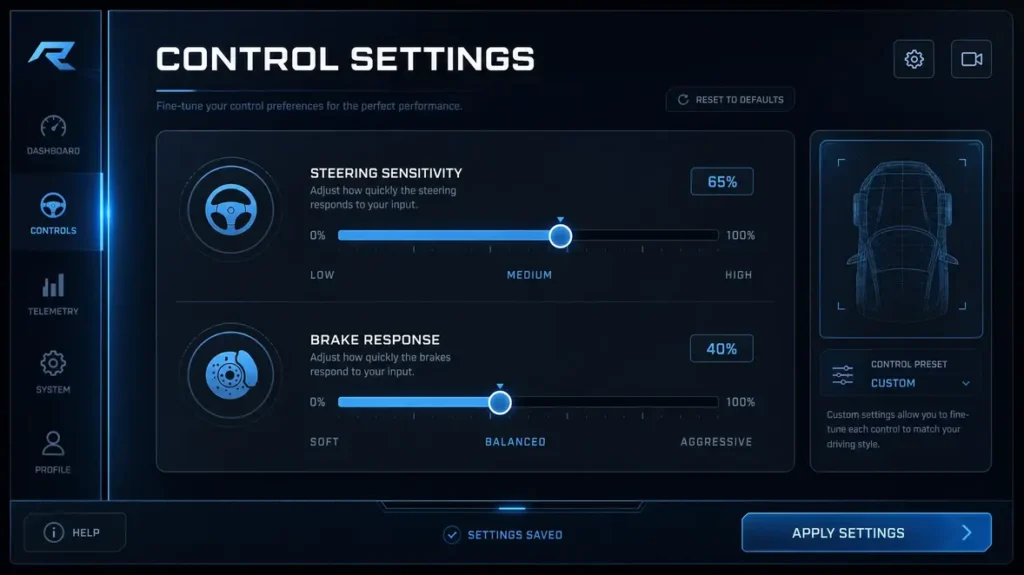
Launch the game and open the main menu. Tap the Settings icon to access the control options. Select the Controls tab to view all available settings.
Adjust Steering Sensitivity
Find the Steering Sensitivity slider in the control settings. Increase the value for quicker steering response. Lower the sensitivity if the bus feels difficult to control. Test the changes during a short route before making further adjustments.
Switch Between Control Types
Bus Simulator Ultimate offers several steering options for different playstyles. You can switch between the virtual steering wheel, tilt steering, and arrow buttons at any time. Choose the option that feels the most comfortable during daily gameplay.
Customize Button Layout
Some versions of the game let you move on-screen buttons to better positions. Arrange the accelerator, brake, steering, and camera buttons where they feel easy to reach. A well-organized layout reduces mistakes during busy routes.
Reset Controls
If your custom settings cause problems, reset the controls to their default configuration. Open the control settings and select the Reset option. Review the new layout before starting your next trip.
Best Control Settings for Smooth Driving
The right control settings make every trip easier to manage. Small adjustments can improve steering, braking, and overall bus handling. Test each setting on a short route before changing another option.

Best Steering Sensitivity
Choose medium steering sensitivity for balanced control. Lower sensitivity helps on highways and long routes. Higher sensitivity works better in tight streets and crowded bus terminals.
Camera Angle
Use the exterior camera while learning the game. It gives a wider view of traffic and nearby obstacles. Switch to the interior camera after gaining more confidence. Change camera views when parking or reversing for better visibility.
Brake Sensitivity
Keep brake sensitivity at a balanced level. Gentle braking creates smoother stops and improves passenger comfort. Avoid settings that make the bus stop too suddenly.
Automatic vs Manual Transmission
Automatic transmission suits new players because it handles gear changes for you. Manual transmission gives experienced drivers more control. Learn the road first before switching to manual mode.
Steering Wheel Size
Choose a steering wheel size that fits your screen. A larger wheel offers better precision during turns. A smaller wheel leaves more space for other controls.
HUD Layout
Arrange the HUD so every button stays easy to reach. Keep steering, brake, and accelerator controls within your thumb’s natural movement. A clean layout reduces missed inputs during busy routes.
Touch Response
Use a responsive touch setting for quick inputs. Delayed controls make steering and braking less accurate. Check your device settings if touch inputs feel slow.
Recommended Settings for Beginners
Use arrow buttons or the virtual steering wheel for simple control. Select automatic transmission and medium steering sensitivity. Drive with the exterior camera until you feel comfortable.
Recommended Settings for Intermediate Players
Switch to the virtual steering wheel for better precision. Fine-tune steering sensitivity to match your driving style. Practice with different camera angles during parking and reversing.
Recommended Settings for Experienced Players
Use manual transmission for greater control over the bus. Adjust sensitivity for faster steering response without losing stability. Choose a layout that supports quick access to lights, indicators, and camera controls.
How to Drive a Bus Smoothly Using the Controls
Good control habits make every trip safer and more enjoyable. Smooth driving also improves passenger satisfaction and helps you earn more rewards during gameplay.
Starting the Bus
Start the engine before selecting a gear. Check your surroundings and release the handbrake when you’re ready to move. Make sure the doors are closed before leaving the stop.
Pulling Away
Press the accelerator gently to build speed. Avoid sudden acceleration because it affects bus stability. Stay in your lane and watch nearby traffic.
Turning
Slow down before every turn. Rotate the steering wheel smoothly without making sharp movements. Use the camera view that gives the clearest view of the road.
Using Indicators
Turn on the indicators before changing lanes or making a turn. Signal early so other vehicles can react. Switch the indicators off after completing the maneuver.
Braking
Brake gradually instead of stopping suddenly. Leave enough distance from vehicles ahead. Smooth braking keeps passengers comfortable and reduces driving mistakes.
Parking
Reduce your speed before entering the parking area. Align the bus carefully with the parking space. Apply the handbrake after stopping completely.
Reversing
Shift into reverse and move slowly. Use the exterior or free camera to check blind spots. Watch nearby vehicles and avoid sudden steering inputs.
Passenger Pickup
Stop close to the bus stop without blocking traffic. Open the passenger doors after the bus stops completely. Close the doors before pulling away from the stop.
Following Traffic Rules
Obey speed limits and traffic signals throughout every route. Stop at red lights and give way when required. Safe driving improves your performance and passenger satisfaction.
Fuel-Efficient Driving
Maintain a steady speed whenever possible. Avoid hard acceleration and unnecessary braking. Plan your route and drive smoothly to reduce fuel consumption and operating costs.
Common Control Problems and How to Fix Them
Control issues can interrupt your gameplay and make driving difficult. Most problems have simple solutions that take only a few minutes.
Steering Not Working
Check your selected steering method in the control settings. Switch between the steering wheel, tilt steering, and arrow buttons to test each option. Restart the game if the steering still does not respond. Update the game to the latest version if the issue continues.
Keyboard Controls Not Responding
Confirm that your emulator detects the keyboard correctly. Open the key mapping settings and check every assigned shortcut. Save the layout and restart the game. Update your emulator if the keys still fail to work.
Controller Not Detected
Reconnect the Bluetooth or USB controller before launching the game. Verify that your device recognizes the controller. Open the emulator settings and enable gamepad support if needed. Test the controller with another game to rule out hardware issues.
Buttons Missing
Check the control layout in the game settings. Restore the default layout if important buttons disappear. Restart the game after saving your changes. Update the game if the problem returns.
Sensitivity Too High
Open the control settings and reduce the steering sensitivity. Test the new setting during a short drive. Repeat the adjustment until the bus feels stable and easy to control.
Lag While Steering
Close background apps to free system resources. Lower the graphics settings if your device struggles during gameplay. Keep your emulator and graphics drivers updated for smoother performance. Stable frame rates improve steering response.
Controls Reset Automatically
Sign in with your game account if cloud saving is available. Save your settings before closing the game. Avoid clearing the game’s data unless necessary. Reapply your preferred layout after major game updates if required.
Mobile vs Keyboard vs Controller Controls
Each control method offers a different driving experience. The best option depends on your device, comfort, and preferred playstyle.
| Feature | Mobile | Keyboard | Controller |
| Steering Precision | Good with a steering wheel or tilt controls | Very good with custom key mapping | Excellent with analog sticks |
| Easy to Learn | Excellent for beginners | Good after learning the shortcuts | Good with basic controller experience |
| Camera Control | Tap on-screen camera button | Fast using keyboard shortcuts | Smooth with mapped buttons |
| Realism | Good | Good | Excellent with analog triggers and sticks |
| Comfort | Best for short sessions | Comfortable on a desktop setup | Best for long driving sessions |
| Best For | Casual and new players | Emulator users who prefer a keyboard | Players seeking realistic bus driving |
Mobile controls work well for most players because they are simple and easy to understand. Touch controls also suit quick gaming sessions on Android and iOS devices. Keyboard controls give PC players faster access to driving functions. They work best after you create a comfortable key layout in your emulator. Controllers provide the most natural driving experience. Analog sticks allow smoother steering, while triggers improve acceleration and braking control. They are an excellent choice for long routes and realistic gameplay.
Tips to Master Bus Simulator Ultimate Controls
Learning the bus simulator ultimate controls takes practice and patience. Small improvements can make every route smoother and more enjoyable.
Practice Smooth Steering
Turn the steering wheel with gentle movements. Sharp steering can make the bus unstable, especially at higher speeds. Practice on open roads before driving through busy cities.
Brake Early Before Turns
Reduce your speed before reaching a corner. Early braking gives you better control and helps the bus stay in its lane. It also improves passenger comfort.
Use Mirrors Frequently
Check your mirrors before changing lanes or turning. They help you spot nearby vehicles and avoid collisions. Make mirror checks part of your driving routine.
Learn Camera Shortcuts
Switch between camera views when the situation changes. Exterior views help with parking and reversing. Interior views improve road awareness during normal driving.
Avoid Sudden Acceleration
Press the accelerator smoothly instead of flooring it. Steady acceleration keeps the bus stable and reduces fuel consumption. Passengers also enjoy a more comfortable ride.
Use Indicators Correctly
Signal before every turn or lane change. Early signals help other drivers understand your next move. This habit also supports realistic gameplay.
Try Manual Mode After Gaining Experience
Start with automatic transmission while learning the game. Switch to manual mode after mastering the basic controls. Manual driving gives you greater control over speed and gear changes.
Customize Controls to Your Comfort
Adjust the steering sensitivity, button layout, and camera settings to match your playstyle. Comfortable controls reduce mistakes and improve your confidence on every route.
Frequently Asked Questions
What are the controls for Bus Simulator Ultimate?
Bus Simulator Ultimate includes steering, accelerator, brake, gear controls, handbrake, camera controls, lights, indicators, horn, wipers, and door controls. You can also adjust several control settings to match your driving style.
How do you steer in Bus Simulator Ultimate?
You can steer using the virtual steering wheel, tilt steering, or arrow buttons on mobile devices. PC players use keyboard mappings or a supported controller through an emulator.
Can I customize the controls?
Yes. You can change steering sensitivity, switch control types, and adjust the button layout in supported game versions. PC players can also customize keyboard and controller mappings through their emulator.
Does Bus Simulator Ultimate support controllers?
Yes. Many Android devices and PC emulators support Bluetooth and USB controllers. Controller compatibility depends on your device, operating system, and emulator.
What are the default keyboard controls?
Bus Simulator Ultimate does not include official default PC keyboard controls. Keyboard shortcuts depend on your emulator and your custom key mapping.
Which steering option is best for beginners?
Arrow buttons work well for most beginners because they are simple to learn. Many players switch to the virtual steering wheel after gaining more experience.
How do I change steering sensitivity?
Open Settings, then go to Controls. Move the steering sensitivity slider until the bus feels comfortable and easy to handle.
How do I switch between manual and automatic transmission?
Open the game settings and select the transmission option. Choose automatic for easier driving or manual for greater control over gear changes.
Why are my controls not working?
Check your control settings, key mappings, or controller connection. Restart the game if the issue continues. Updating the game and your emulator can also fix many control problems.
Can I play Bus Simulator Ultimate with a Bluetooth controller?
Yes. Many Bluetooth controllers work with supported Android devices and PC emulators. Pair the controller first, then check the button mapping before starting a route.
Final Thoughts
Learning Bus Simulator Ultimate controls helps you drive with greater confidence and accuracy. It also makes parking, turning, and passenger pickups much easier. Good control habits improve every part of your driving experience. Take time to try different steering methods, camera views, and sensitivity settings. The right combination depends on your device and personal preference. Small adjustments can make long routes feel more comfortable. Practice regularly to build better driving skills. Smooth steering, careful braking, and proper signaling create safer trips and happier passengers. As your control improves, every route becomes more enjoyable and rewarding.